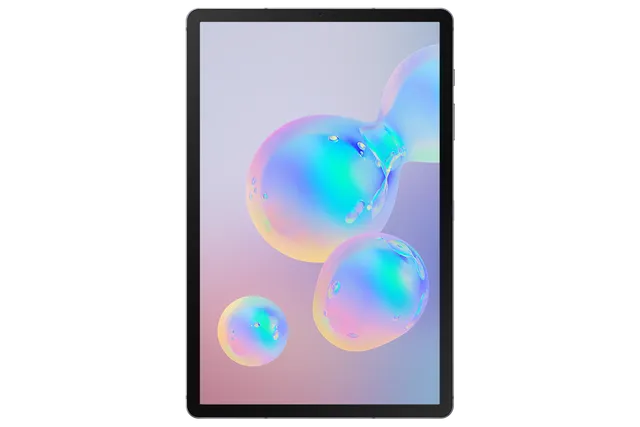
Gray
Tablet · Samsung Galaxy Tab S6
Stock firmware and official updates for the Samsung Galaxy Tab S6 (SM-T867R4), by region.
Samsung's official release notes, newest first.
• Stability and reliability Device behavior has been improved. • Security The device is protected with improved security.
Released for 1 CSC: USC
Source: SamsungSoftware and Terms & Conditions Update IMPORTANT INFORMATION: This update includes revised Terms & Conditions for your device, including the Dispute Resolution Agreement with arbitration terms. For more information, review https://www.samsung.com/us/support/legal/mobile/. By clicking “Install now,” by scheduling your install, or by continuing to use your device after installation, you agree to these revised Terms & Conditions. • Security The device is protected with improved security.
Released for 1 CSC: USC
Source: Samsung• Overall stability of your device has been improved. • The security of your device has been improved.
Released for 1 CSC: USC
Source: Samsung· The security of your device has been improved.
Taken from the SM-T865; this model can differ (chipset, network bands).
Released for 1 CSC: USC
One UI 4.1.1 Update Multitasking Switch between apps quickly A taskbar now appears at the bottom of the screen for quicker navigation between apps. Quickly open apps in split screen or a pop-up window Drag apps from the taskbar or Recents screen to open them however is most convenient for you. Drag to the top, bottom, left, or right edge of the screen to open in split screen. Drag to the center of the screen to open in a pop-up. Open app pairs quickly Pair apps that you often use together, then add them to the Home screen or taskbar so you can open them in split screen with just a single tap. Easily switch from pop-up view to split screen When you're using an app in pop-up view, just tap the split screen button inside the window handle. You'll be able to choose a second app to open alongside of it. Change your view with a gesture Switch from full screen to split screen view by swiping inward with two fingers from the left side, right side, or bottom of the screen. Switch from full screen to pop-up view by swiping inward with one finger from either corner at the top of the screen. Gestures can be turned on or off in Settings. Show app names in the Apps edge panel Turn on Show app names to make app names appear below the app icons. Extract and scan text Extract text from any image or screen Extract text using Samsung Keyboard, Internet, Gallery, or whenever you take a screenshot. Paste the result into a message, email, or document instead of typing. Korean, English, French, Italian, German, Portuguese, Spanish, and Chinese text can be extracted. Get suggestions based on text in images When text appears in an image in Gallery, Camera, or other apps, actions will be recommended based on the text. For example, if you take a picture of a sign with a phone number or web address on it, you can tap to call the number or visit the site. New calling options Easily see who’s calling Set a different call background for each contact so you easily see who's calling with just a quick glance. Video calls with Google Meet Google Duo has been merged with Google Meet. You can now join 1:1 video calls as well as group video conferences all in one place with Google Meet. Express yourself with Samsung Keyboard Rearrange expression buttons Touch and hold the emoji, sticker, and other buttons to rearrange them. Enter kaomoji directly from the keyboard Spice up your chats and texts with preset Japanese-style facial expressions created using keyboard symbols. (*^.^*) More improvements More powerful search in My Files Choose whether to search all files or only files in the current folder. You can also choose between searching only file names or searching information inside of files, such as text in documents or location information in images. When your search is complete, you can sort the results by name, date, size, or file type. Drag and drop bookmarks between folders Keep your Samsung Internet bookmarks organized by dragging and dropping them between folders. Edit your Lock screen wallpaper collection After selecting a group of images to use for your Lock screen wallpaper, you can easily add or remove images later.
Released for 1 CSC: USC
Source: Samsung• Overall stability of your device has been improved. • The security of your device has been improved.
Released for 1 CSC: USC
Source: SamsungOne UI 4.1 Upgrade (Android 12) One UI 4.1 brings you a wide array of new features and enhancements for your Galaxy devices. More intuitive, more fun, more secure, and easier than ever. Check out the changes below. Color palette Customize your tablet with unique colors based on your wallpaper. Your colors will be applied to menus, buttons, backgrounds, and apps throughout your tablet. Privacy One UI 4.1 offers strong privacy protection to make sure your personal information doesn’t fall into the wrong hands. Permission info at a glance See when each app accesses sensitive permissions such as Location, Camera, or Microphone in Permission usage. You can deny permissions for any apps you don’t feel comfortable with. Camera and microphone indicators Keep prying eyes and ears away. A green dot will appear in the upper right corner of the screen when any app is using the camera or microphone. You can also use quick panel controls to temporarily block all apps from using the camera or microphone. Approximate location Keep your exact location private. You can set apps that don't need to know exactly where you are to only have access your general area. Clipboard protection Keep your passwords, credit card numbers, and other sensitive information safe. You can choose to receive an alert whenever an app accesses content copied to the clipboard in another app. Samsung Keyboard More than just typing, Samsung Keyboard is all about expressing yourself and having fun. Quick access to GIFs, emojis, and stickers Self-expression is a tap away. Get to your emojis, GIFs, and stickers directly from the keyboard with a single button. Animated emoji pairs Can’t find the right emoji? Combine two emojis together, then add an animation to really get your feelings across. Even more stickers Spice up your conversations with a variety of new animated stickers available to download. Writing assistant Keep your grammar and spelling on point with the new Writing assistant, powered by Grammarly (English only). Home screen It all starts on the Home screen, where your favorite apps and features are just a tap away. One UI 4.1 helps you keep your home screen looking its best all the time. New widget design Widgets have been redesigned to look better than ever, with info that’s easy to see at a glance and a more consistent style. Easier widget selection Having trouble finding the right widget? You can now quickly scroll through the widget list to see what’s available from each app. You’ll also get recommendations for useful widgets to try out. Lock screen Use widgets to handle quick tasks without unlocking your tablet, whether it’s controlling your music, checking your schedule, or capturing your best ideas. Listen where you want Switch audio output from buds to speakers to your tablet, all from the Lock screen. Voice recording Got a great idea? Record a voice memo without unlocking your tablet. Calendar and schedule at once Check today’s schedule along with your calendar for the rest of the month on the Lock screen. Camera Enjoy a simpler layout while you take pictures and videos. The scene optimizer button only appears in Photo mode if there’s low light or you’re scanning a document. Portrait and Night mode settings are now tucked away and more intuitive. Lens and zoom Lens icons show the magnification level, so you know how much you’re zoomed in. Video that never misses a moment Recording starts immediately after you tap the Record button, instead of when you release it, so that you catch those precious moments before they’re gone. In Photo mode, you can touch and hold the Shutter button to start recording a quick video, then drag your finger to the Lock icon to continue recording without holding down the Shutter. Enhanced scanning Scan documents, then tap the magnifying glass to zoom in and edit them immediately. You can also do more after scanning QR codes, like calling or emailing someone instead of just adding their contact info to your tablet. Gallery Whether you’ve got thousands of pictures and videos or just a few treasured moments, Gallery makes it easier to find what you need and keep your collection organized. Enhanced stories See your stories come to life with highlight videos that are created automatically. Just tap the preview at the top of each story to watch. You can also explore where the pictures in your stories were taken in the new Map view. Easier albums Sort through albums more easily—even if they’ve got tons of pictures. In fact, you can sort albums by how many pictures and videos they contain so that your favorite and most used albums are always at the top of the list. A cover image also appears at the top of the screen when you view an album to give you a better feel for what the album contains. Worry-free remastering Revert remastered pictures to their original versions at any time, even after they’re saved, so you never have to worry about losing the original. More control over information Change or remove the date, time, and location of your pictures to correct it or keep it private. You can also select several pictures and edit their information at once. Photo and video editor Sometimes your photos and videos need a few tweaks. One UI’s Photo and Video editors are there to make your pictures look their best before you share them. Emojis and stickers Use an emoji to cover the face of a shy friend or add stickers to create fun pictures and videos. Video collages Make moving collages that include pictures, videos, or a combination of both. Pick out the perfect moments and create your masterpiece. Lighting control Picture too dark because of bad lighting? The new Light balance feature helps you pull out all the details to make it look great. Never lose the original Get bold with your editing! You can now revert both pictures and videos back to their original versions after they’re saved, or save them as copies to keep both the original and edited versions. Paste from one picture to another Experiment with mixing and matching faces, pets, buildings, and more. You can cut any object out of one picture and paste it into a different one. AR Emoji Use your own personal emojis to spice up your messages, make fun videos, and more. You can create a digital version of yourself, or try a different look. The possibilities are endless. Jazz up your profile Use an AR emoji as your profile picture in Contacts and Samsung account. You can choose from over 10 poses or create your own expressions. Face stickers Pretend to be your emoji with new stickers of your emoji’s face. Have fun decorating your photos and sharing them with your friends. Dance the night away Make cool dance videos with your AR emojis. Choose templates from 10 different categories including #Fun, #Cute, and #Party. Design your own clothes Ever wanted to be a fashion designer? You can now use your own drawings to create unique clothes for your AR emojis. Sharing One UI helps you stay connected and share your experiences with others. Just tap the Share button in any app. More customization Make sharing your own. You can customize the list of apps that appear when you share content to keep the clutter away and focus only on the apps you use regularly. Easier navigation New layout and better navigation makes sharing a breeze. Swipe left or right to scroll through apps and contacts when you’re sharing. Calendar One UI 4.1 makes it even easier to keep your busy life organized. Check your schedule on the Home screen A new widget shows your schedule for the day along with a full calendar for the month. Quick add events Need to add something to your calendar in a hurry? Just enter a title and you’re done. More search options You’ve got more ways than ever to find your calendar events. Choose from recent search keywords or filter by color or sticker. Share with others Sometimes you need to keep others in the loop. It’s now easier to share your calendars with other Galaxy users. Easier date and time selection Setting event details is a breeze with separate date and time options. Recover deleted events Events you delete will stay in the Trash for 30 days so you can get them back if you need them. Samsung Internet One UI’s fast and secure web browser now makes it even easier to find the webpages you’re looking for and protect your privacy. Search suggestions Get more search suggestions when you enter text in the address bar. Results will appear with an all new design. Search from the Home screen The new search widget helps you find what you’re looking for, right from the Home screen. Start in Secret mode To protect your privacy, Samsung Internet will automatically start in Secret mode if you were using Secret mode during your last browsing session. Device Care See your tablet’s performance, security, and battery life at a glance, solve problems quickly, and get deep diagnostics for more complex issues. Battery and security at a glance Battery and security issues will appear right on the main screen so you can solve problems more quickly. Understand your tablet’s overall status Your tablet’s overall status is shown as an emoji, so you can understand instantly. Diagnostic checks Now you can get right to Samsung Members diagnostics from Device Care. If something seems wrong with your tablet, try the diagnostic tests to find out what the problem is and get suggestions for solving it. Bixby Routines Make your tablet do more for you. Turn on Wi-Fi automatically when you come home, or set your tablet to silent when you’re at work. One UI 4.1 gives you even more possibilities. More conditions More conditions are available for your routines. Start a routine during a call or when a certain notification arrives. More actions You can now turn on Enhanced processing with a routine. There are also more options such as connecting and disconnecting Bluetooth devices. More control Reorder actions by touching and holding actions on the edit page. Advanced options have also been added to let you wait before an action starts, confirm actions, and more. More combinations We’ve removed restrictions for some combinations of conditions and actions so you can do even more with your routines. More customization Create custom icons for your routines using the Camera or an image from Gallery. Accessibility One UI is designed for everyone. In One UI 4.1, you’ll get even more options to help you use your tablet in the way that’s most comfortable for you. Always there when you need it Access accessibility features more quickly with a floating button that’s always available. Mouse gestures Perform actions more quickly by moving your mouse pointer to one of the 4 corners of the screen. Adjust your screen at once Adjust contrast and size at the same time with custom Display mode (High contrast or Large display). Eye comfort More visibility options are available to meet your needs. You can reduce transparency or blur. Extra dim screen If your screen is too bright, even at the lowest brightness setting, turn on Extra dim for more comfortable reading in the dark. Customizable flash notifications Make the screen flash when you receive a notification. You customize colors for each app so you can easily determine where a notification is coming from. Easier magnification Magnifier window has been merged with the new Magnification menu, giving you more options and more control for magnifying content on the screen. More features and improvements Enhanced Dark mode To keep you comfortable in the dark, Dark mode now automatically dims wallpapers and icons. Illustrations in Samsung apps now have Dark mode versions with darker colors for a more consistent experience that’s easier on your eyes. Charging info at a glance When you start charging, different visual effects let you know your charging speed more intuitively. Easier brightness control A bigger brightness bar in the quick panel makes it easier to change screen brightness with a swipe. Tips preview videos Learn more about what your Galaxy can do with preview videos on the main screen of the Tips app. Safety and emergency menu The new Safety and emergency menu in Settings lets you manage your emergency contacts and safety information all in one place. Settings search enhancements Improved search features help you find the settings you need, when you need them. You’ll get suggestions for related features depending on what you search for. Keep your eyes on the road The new Driving monitor in Digital Wellbeing keeps track of when you use your phone while driving. You’ll get reports on how much you used your tablet and which apps you used. Skip an alarm just once Feel like sleeping in? You can now turn off an alarm just for one occurrence. It will turn back on automatically after it’s skipped. Day or night at a glance Have a friend on the other side of the world? It’s easier to see if it’s a good time to contact them. The dual clock widget now shows different background colors for each city depending on whether it’s day or night. Switch from texts to calls Texting not cutting it? Tap the person’s name at the top of the conversation to see their details or start a voice or video call. More search results in Messages Now you can search your messages for photos, videos, web links, and more. The results are all filtered so you can jump right to what you’re looking for. Easier search in My Files Find the file you’re looking for, even if there’s a typo or the name doesn’t match exactly. The Recent files area has also been expanded to help you quickly locate files you’ve used or received recently. More complete desktop experience More apps are resizable in Samsung DeX, so you can multitask and get more done throughout the day. You can also change the touchpad scrolling direction in DeX settings to match your personal preference. Resizable picture-in-picture If a floating video is getting in the way, pinch your fingers together to make it smaller. Want to see more? Spread your fingers apart to make it bigger. Quick access to pop-up window options For easier multitasking, you can pin the window options menu to the top of the window to make it easier to access. Game optimizing service CPU/GPU performance during early stages of gameplay will not be limited. (A performance management feature based on device temperature will be maintained.) The “Alternate game performance management mode” in Game Booster will be provided. Some apps will need to be updated separately after the One UI 4.1 upgrade.
Released for 1 CSC: USC
Source: Samsung• Overall stability of your device has been improved. • The security of your device has been improved.
Released for 1 CSC: USC
Source: SamsungOne UI 3.1 Upgrade (Android 11) One UI 3.1 is designed to help you focus on what matters. Our visual redesign has improved the places you visit the most, like the Home screen and quick panel, to reduce distractions, highlight important information, and make your experience more consistent. Performance improvements will help apps run quicker while using less battery power. And One UI 3.1 puts control in your hands with new privacy controls, one-time permissions, and enhanced Digital Wellbeing. Scroll down for a full list of changes. Visual design We’ve refreshed the look and feel of One UI 3.1 in lots of ways, big and small, from new, more consistent icons to smarter organization of the quick panel and notifications. Motion is smoother and more natural than ever, with improved animations and haptic feedback for common interactions. And the interface responds to different screen sizes to provide the best experience on any device, whether it’s a phone, foldable, or tablet. Improved performance We optimized One UI 3.1 with enhanced dynamic memory allocation, so apps run faster and perform better. We’ve also restricted background activities to provide better performance and power usage. Better customization • New image categories have been added to Dynamic Lock screen, and you can select up to 5 categories at once. • On the Lock screen, you can add a widget to check your usage time. • Get an interactive preview when setting a wallpaper. • Adjusting the Lock screen is easier. • Add a call background to see a picture or video when you make or receive a call. • In Samsung Internet, you can reorder and lock tabs. • Bixby Routines has even more controls to help you automate your life. • New icons and Lock screen widgets make it easier to find and control your routines. • Use Digital Wellbeing with separate personal and work profiles. Enhanced features Home screen and Lock screen • Add widgets by touching and holding an app on the Home screen. • Turn off the screen by double tapping on an empty space on the Home or Lock screen. (Set it up in Settings > Advanced features > Motions and gestures.) • On the Lock screen, tap the clock area to see widgets like calendar, weather, and music. Calls and chats • See conversations separately in the notification panel. Works with Messages and your favorite chat apps. • Easily remove duplicate contacts stored in the same account in Contacts. The storage period for deleted contacts has been extended from 15 days to 30 days. • Added the ability to edit multiple linked contacts from a single screen. • Added Trash in Messages so that recently deleted messages are stored for 30 days. Pictures and videos • Take pictures quicker with improved auto focus and auto exposure. • View, edit, and share pictures and videos more easily from Gallery. • Find pictures and videos quicker with new search features and categories in Gallery. • Revert edited pictures to their original versions at any time, even after they’re saved, so you never lose a shot. Settings • Settings has a new simpler look and feel. Your Samsung account is shown at the top, and Home screen settings are now easier to access. • Find the settings you need more easily with new Search features. You’ll get better results for synonyms and common misspellings, and you can tap on tags to see groups of related settings. • Quick settings buttons have been reduced to provide only the most commonly used features. You can also add buttons to create your own customized quick panel. Samsung Keyboard • Increased the number of input languages to 370. • Made it easier to paste copied images and verification codes from text messages. • Added emoji and sticker suggestions when you enter a text-based emoticon. • Reorganized Keyboard settings so it's easier to access frequently used settings. Productivity Maintain a healthy balance between work and life by minimizing repetitive and complicated tasks and handling them efficiently. • New routines will be recommended based on your daily life and usage patterns. • Bixby Routines provide a setting to return everything to the way it was before the routine ran. • In Internet, you can hide the status and navigation bars for a more immersive experience and quickly translate webpages. • You’ll be prompted to block websites that send too many pop-ups or notifications. • You can browse and select cloud drive files from the file selection screen in My Files. • You can now delete cache files in My Files to easily free up storage space. • Events with the same start time are displayed together in the month and list views in Calendar. • Use your phone or tablet app icon layout in Samsung DeX so you know where everything is. • Open the touch pad from the navigation bar on your phone or tablet. Easy media and device control Media and device control is easier with the improved media panel in notifications. You can see recently used media apps and quickly change the playback device. You can also check Android Auto settings in the Advanced features menu in Settings. Identify and improve your digital habits Improved Digital Wellbeing features make it easy to check how you're using your phone or tablet and help you form good digital habits. Check your usage while driving or see weekly changes in your screen time by function at a glance through upgraded weekly reports. Accessibility for everyone One UI 3.1 recommends useful accessibility features for you based on your usage. The improved Accessibility shortcut makes accessibility features easier to start and use. You can use the Speak keyboard input aloud feature to get voice feedback of your typing even when TalkBack is turned off. Stronger privacy protection You can now let an app access to your microphone, camera, or location just one time. Any permissions that an app hasn’t used in a while will be automatically revoked. You can no longer give apps permission to always see your location in the regular permission popup. To let apps access your location when they’re not in use, you need to go to the location permission page for the app in Settings. Enhanced connectivity with other devices. • The tablet can be used as an additional display device to a computer. • Support Buds auto switching between Galaxy phone and tablet (when using a same Samsung account in both devices). • Support Samsung Internet and Samsung Notes continuity between devices using a same Samsung account. • Support Copy/Paste of texts and images between devices using a same Samsung account. • Support inputs from the tablet keyboard by sharing the tablet keyboard case with a smartphone. Additional improvements • In Clock, you can hear the time and preset name of the alarm read aloud when an alarm rings. Some apps will need to be updated separately after the One UI 3.1 update. You can no longer use Wi-Fi Direct to send files to other devices. You can use Nearby Share instead. You can still receive files using Wi-Fi Direct. You can no longer connect to Chromecast using Smart View. You can use Google Home instead.
Released for 1 CSC: USC
Source: SamsungSamsung DeX - Wireless DeX connection support. Wi-Fi - If quality information on nearby Wi-Fi routers can be measured, this information will appear as Very Fast, Fast, Normal, or Slow. * This feature can be turned on or off in "Network Quality Information Display" settings. - When attempting to access a Wi-Fi router with a password, a newly added feature now allows the user to request the password of the Wi-Fi router from someone nearby who is saved in their contact list and has already connected to that router. * The "Request Password" button will appear on the Wi-Fi password input screen when you can request a password. Multi window - The screen can now be split into 3 section. The following functions have been added : AR Zone, Edge panel The security of your device has been improved.
Released for 1 CSC: USC
Source: SamsungOne UI 2 upgrade with Android 10 One UI 2 brings you Android 10, with exciting new features from Samsung and Google based on feedback from users like you. We recommend that you back up your important data to keep it safe during the upgrade. Some apps, including Calculator, Samsung Internet, and Samsung Notes, need to be updated individually after you update your OS. Here's what's new. Dark mode - Enhanced image, text, and color adjustments for day and night environments. - Darkened wallpapers, widgets, and alarms while Dark mode is on. Icons and colors - Clearer app icons and system colors. - Improved layouts for titles and buttons to eliminate wasted screen space. Smoother animations - Enhanced animations with a playful touch. Full screen gestures - Added new navigation gestures. Refined interactions - Navigate more comfortably on large screens with minimal finger movement. - Easily focus on what matters with clearly highlighted buttons. Accessibility - High contrast keyboards and layouts for large text have been improved. - Listen to live speech and display it as text. Better text over wallpapers - See text more clearly against wallpaper, as One UI automatically adjusts font colors based on light and dark areas and color contrast in the image below. Media and devices - Replaced the SmartThings panel with the Media and Devices. - Media: Control music and videos playing on your phone as well as other devices. - Devices: Check and control your SmartThings devices directly from the quick panel. Device care - The battery usage graph now provides more detailed information. Digital wellbeing - Set goals to keep your phone usage in check. - Use Focus mode to help avoid distractions from your phone. - Keep an eye on your kids with new parental controls. Camera - Added the ability to edit the modes that appear at the bottom of the screen. - Provided a More tab so you can quickly access hidden modes from the preview screen. - Improved the layout so you can focus on taking pictures without the settings getting in the way. Internet - Customize the quick menu to get instant access to the features you use the most. - Get more information from the app bar. - Install add-ons from the Galaxy Store to get even more features. Samsung Contacts - Added Trash feature for Contacts. Contacts that you delete will stay in the trash for 15 days before being deleted forever. Calendar - Stickers can be added to a date without creating an event. - Ringtones can be used for event alerts. Reminder - More options are available for repeating reminders. - Set location-based reminders for a specific period of time. - Share reminders with your family group and other sharing groups. - Set reminders for a specific date without an alert. My Files - Created a Trash feature so you can restore files if you delete something by mistake. - Added more filters you can use while searching to help you find things quickly. - You can now copy or move multiple files and folders to different destinations at the same time. Calculator - Added speed and time units to the unit converter. Samsung keyboard - A multilingual translation feature has been added. - Stickers can be added to a date without creating an event. - A text undo/redo feature has been added. - You can now search for music in Spotify directly from the keyboard. - An icon to open Samsung Pass has been added. Quick Share - Files can now be quickly and easily shared with nearby Samsung devices using Quick Share. Music Share - Music Share now lets you share music with your friends using a Bluetooth audio device. Samsung Daily - Bixby Home has been replaced with Samsung Daily.
Released for 1 CSC: USC
Source: Samsung· Device stability improvements, bug fixes. · New and / or enhanced features. · Further improvements to performance.
Released for 1 CSC: USC
Source: Samsung

