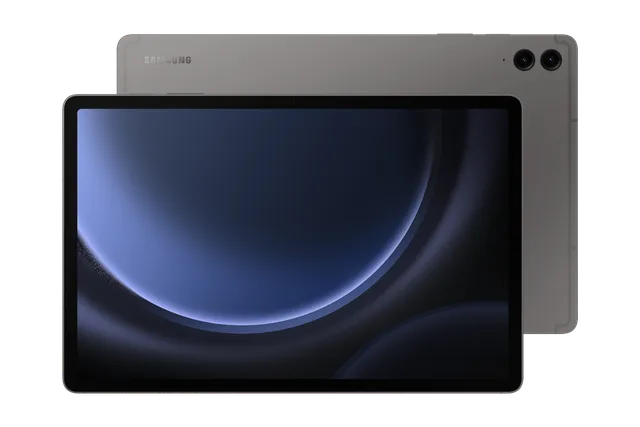
Gray
Tablet · Samsung Galaxy Tab S9 FE+
Stock firmware and official updates for the Samsung Galaxy Tab S9 FE+ (SCT22), by region.
 Japan KDIBuildSCT22KDSFEZH2AndroidAndroid 16Security patchAug 2026ReleasedOct 5, 2026DetailsWhat's new
Samsung's official release notes, newest first.
· Device stability improvements, bug fixes. · New and / or enhanced features. · Further improvements to performance.
Released for 1 CSC: KDI
Source: SamsungOne UI 8.5 Visual design Fresh new look One UI seamlessly integrates into your daily routine by combining immersive visuals with meaningful personalization for a more refined and sophisticated design. Transparent blur effects add depth and make content easier to navigate, while floating elements react organically to your workflow for a more focused experience. Through familiar and intuitive data visualization, One UI delivers a design that feels both personal and relatable, helping you focus on what matters. Bixby Smarter device control Talk to Bixby in your own words. Bixby is now better at finding the setting or feature you need, even if you don’t use exact commands or feature names. Just say what you need and let Bixby do the rest. Ask anything, anytime Whether you need a quick answer or detailed information, just ask Bixby for an instant response. There's no need to spend time on multiple searches or switching between apps. Conversation history Looking back at past conversations with Bixby is easier than ever. You can now access your conversation history from the side panel in the Bixby app. Camera New filters Three new filters are available to add vibrant film-like effects to your pictures. Home and Lock screens Automatic Lock screen layout Wallpapers with pictures of people or pets now fit perfectly every time. When you choose a photo for your Lock screen, the photo will automatically be adjusted to best fit your clock and widget layout. New downloadable wallpapers Discover new wallpapers featuring interactive elements. Wallpapers are downloadable so they don’t use up your storage space when not in use. More customizable clock fonts Personalize your Lock screen clock. You can now adjust the thickness of more font styles to match your preferred look. Weather Enhanced weather widget Quickly check upcoming precipitation in the Weather widget on your Home screen. The widget now shows a graph if precipitation is expected in the next few hours. Pollen index Check how much pollen is in the air to help manage your allergies. You can check pollen levels for trees, grass, and ragweed. Clock Weather alarm backgrounds Wake up to an alarm that gets you ready for the day’s weather. Your alarm screen can now show the current weather conditions as a background when it rings. Time zone converter Compare time zones at a glance. The new slider in the Clock app makes it easy to check the time difference between places around the world. Connectivity Storage Share Access your files anywhere. Files from your other Samsung phones, tablets, and PCs are available in the My Files app on your tablet. You can also access your tablet's files on other Samsung devices, even your TV. Quickly connect to Smart View devices Connect to your favorite display faster. You can now add a shortcut on your Home screen to instantly mirror your tablet’s screen to a TV or other display device. Quick Share Avoid unwanted sharing requests You can now set Quick Share to only receive files from other devices signed in to your Samsung account or Google account. Samsung Health Upgraded sharing experience Share your workouts your way. Mix and match your exercise stats with photos from your workout to create the perfect social media post. Battery and power Revamped battery info See your battery use more clearly. The redesigned Battery settings screen makes it easier to check remaining time, charging status, and daily usage over the past week. Improved Power saving Use Power saving to make your battery last longer without charging. Choose Standard for moderate savings and customizable limits, or choose Maximum to turn off all non-essential features and make your battery last as long as possible. Security and privacy Turn off Auto blocker temporarily If you need to temporarily disable Auto blocker's security protection, a new option lets you turn it on automatically 30 minutes later so you don't forget. Check the security status of your devices Keep all your devices protected. Knox Matrix now shows when any of the supported devices signed in to your Samsung account need a software update for the latest security protections. Accessibility Easily control Bluetooth hearing aids Access settings for your Bluetooth hearing aids directly from the Accessibility shortcut. A pop-up will appear that lets you change your hearing program, turn Ambient sound on or off, and more. Control magnification with mouse or keyboard Keep what you need magnified in view with these new options. You can make the magnified area follow the cursor as you type or move when you change focus using the keyboard. When using a mouse, you can make the magnified area shift as you move the pointer to the edge of the screen. Dwell action and Corner actions The Auto action after pointer stops feature has been divided into 2 features. Dwell action lets you set custom actions when your mouse stops moving for a certain amount of time. Corner actions let you set a different action for each corner of the screen. Even more improvements More customizable quick panel Arrange your quick settings just the way you like them. You can now add, remove, reorder, and reorganize controls in the quick panel. Early alerts for reminders Get alerts before reminders are due to make sure you don’t forget important tasks. You can choose how far in advance to get an alert for each reminder. Insert tables in Samsung Notes Organize information in your notes with tables. You can adjust column widths, colors, and border designs while the auto calculation feature helps you stay productive and save time. Redesigned New tab page The page that appears when you open a new tab in Samsung Browser has been redesigned to help you quickly access the websites and features you need the most. The New tab page now shows the current security status as well as open tabs from Samsung Browser on other devices. Partial screen recording Include only what you need in your screen recordings. You can now select only the part of the screen that you want to record. Calculator nudges Save time on calculations. Numbers and formulas copied to your clipboard will be suggested when you open Calculator so you can enter them with a quick tap.
Taken from the SM-X616B; this model can differ (chipset, network bands).
Released for 1 CSC: KDI
· Device stability improvements, bug fixes. · New and / or enhanced features. · Further improvements to performance.
Released for 1 CSC: KDI
Source: Samsung· Device stability improvements, bug fixes. · New and / or enhanced features. · Further improvements to performance.
Released for 1 CSC: KDI
Source: SamsungOne UI 8.0 (Android 16) Personalization Enhanced Lock screen widgets Do more on your Lock screen with brief widgets. 2 x 2 size widgets are now available, and the widget area is now larger so you can add even more widgets. You can choose either a horizontal or vertical widget layout. Productivity Check stock prices without unlocking Stocks you follow on Google Finance with big price changes will appear on your Now bar at the end of the trading day. Easier file sharing with Quick Share It's never been easier to send and receive files. Tap the Quick Share button in quick settings to get started. You can receive files while the Quick Share screen is open and send files to others directly from Quick Share. Sticky notes Add quick annotations on top of documents in Samsung Notes. There's no limit to the number of sticky notes you can add, and it's easy to remove them later without disturbing the original document. Find downloads fast You can now filter files based on the app that was used to download them. Works in the Downloaded and Recent views in My Files. Multi-pane file browsing It's easier to keep track of file paths when using My Files on a large screen. When you open a new folder, a new pane will be opened to show what's inside so you can easily get back to where you came from. Redesigned Samsung Internet Access the features you need quickly. The Samsung Internet menu has been optimized to make it easy to access the features you use most. You can also customize the layout to match your personal preferences. Multitasking Discover the new Samsung DeX Easily access a desktop workspace any time by swiping down from the handle at the top of the screen and seamlessly switch between tablet view and DeX. Enhanced split screen view While 2 apps are open in split screen view, you can push one app against the edge of the screen to keep it partially visible while giving most of your focus to the other app. Tap the smaller app any time to switch between them quickly. Open 3 apps in split screen While your tablet is in landscape orientation, you can now open 3 apps side-by-side. Apps will appear in portrait view, just like they would look on a standard phone screen. Reminder New Reminder interface The Reminder app has been redesigned with categories shown at the top of the screen, making it easier to see how many reminders are in each category with a quick glance. Custom categories can be hidden with a quick tap to free up more screen space. Tap one more time to make them appear again. New sample reminders Discover the power of reminders. Sample reminder templates are now available in the Reminder app. Explore these reminders to see what you can do to manage important tasks in your life. Add reminders easily It's never been easier to add new reminders. Just type your reminder into the box at the bottom of the screen. Suggestions will appear as you type that you can tap to save time. You can add checklists, locations, and pictures using the buttons below the text box. Or, if you don't want to type at all, tap the Mic icon for voice input. Calendar Multi-pane view See more at once on large screens in landscape view. You can view your monthly schedule and the schedule for an individual day side by side. Manage reminders in Calendar You can easily create reminders in the Calendar app without opening the Reminder app. Whenever you tap the + button, you'll have the choice of adding an event or a reminder. You can also drag and drop reminders on your calendar to reschedule them. Add events quickly When you start adding an event in the quick add menu, you'll get suggestions for event names and times based on your past events. Just tap one of the suggestions to add an event without additional typing. Samsung Health Bedtime guidance Get to sleep at the right time so you wake up feeling refreshed. The new Bedtime guidance feature analyzes your sleep data and recommends the best time to go to sleep each night. Running challenges In addition to step challenges, you can now challenge your friends to run. You can set a target distance and see who gets there the fastest or set a time limit and see who runs the farthest. Food recording reminders Stay on track to meet your calorie goals. You can now set reminders for recording your food intake in Samsung Health. Photo and video Swipe up or down to open quick controls Access quick controls in Camera even quicker than before by swiping up or down anywhere in the preview area. In Camera settings, change the Swipe up/down option to open quick controls. Audio enhancements Quick access to Galaxy Buds settings It's easier than ever before to control your Galaxy Buds. You can now adjust Buds settings directly from your tablet's Settings without the need to open the Galaxy Wearable app. Communication Improved profile cards It's easier to create and edit your profile card to get the perfect layout for your name and picture. After creating, you can share your profile card so other people can see it when you call them. Review recorded calls in Contacts It's now easier to review your past conversations. Calls you've recorded now appear on the contact history screen. Security and privacy Enhanced Secure Folder Keep sensitive apps and data in a separate, protected area of your tablet. You can now set Secure Folder to close apps and prevent notifications when you lock it. You can also completely hide and encrypt your Secure Folder for maximum protection. Stronger account security Knox Matrix regularly scans devices signed in to your Samsung account for security risks. When a serious risk is found on a device, that device will be automatically signed out of your Samsung account to protect the security risk from spreading to your account and other devices. You can check the security status of your devices any time in Security and privacy settings. Show or hide notification content while locked The option to show or hide notification content while your tablet is locked is now located in Notifications settings. Choose to show content for quick access to notifications without unlocking your tablet, or choose to hide content to keep your notifications private and prevent others from seeing them. Accessibility Pinch and zoom with the Assistant menu The Assistant menu now provides more ways to zoom in and out on the screen. In addition to dragging with one finger, you can now adjust the zoom level by pressing buttons on the screen. Control mouse actions with your keyboard If you can't or don't want to use a mouse, turn on Mouse keys in Accessibility settings to use your physical keyboard to move the mouse pointer, click, hold, and scroll. Magnify your keyboard You can now make the keys on the on-screen keyboard larger so they're easier to see and tap. Turn on Magnify keyboard while typing in Magnification settings to try it. Easily pair Bluetooth hearing aids You can now pair and connect your Bluetooth hearing aid devices directly on the Hearing aid support screen in Accessibility settings. Modes and routines New preset routines Check out the new preset routines for weather and other advanced conditions. Use them as they are, or customize them to meet your needs. New routine actions New actions are available for getting data from the Clock, Calendar, and Samsung Notes apps. After you get data, you can use it in other conditions or actions in your routine. Even more improvements Enhanced multitasking with Google Gemini Get help from Gemini while keeping other apps visible. Gemini now takes up less space on the screen and provides an option to easily switch to split-screen view. Easily organize alarms You can now add existing alarms to an alarm group by tapping the + button on the Alarm group screen. You can also add an alarm group to a widget on your Home screen so you can turn all of the alarms in the group on or off with a single tap. Enhanced app notification settings You can now choose the pop-up notification style for each app separately in the app’s notification settings. Revamped weather visuals The Weather app now provides more rich and realistic images to help you intuitively understand the current weather conditions.
Released for 1 CSC: KDI
Source: Samsung· Device stability improvements, bug fixes. · New and / or enhanced features. · Further improvements to performance.
Released for 1 CSC: KDI
Source: Samsung· Device stability improvements, bug fixes. · New and / or enhanced features. · Further improvements to performance.
Released for 1 CSC: KDI
Source: Samsung■OS update notice■ Android™ 15 OS update is now available. The implementation of the OS update will add new functions, improve usability, and change the names of functions and items. Please check the details and notes about the update on the website of au in advances, and then implement the update. Please back up data before implementing the OS update. After implementing the OS update, you cannot revert to the old one. As the update file size is large, please use Wi-Fi®. During the OS update, you cannot do anything including sending and receiving emails. Please implement the OS update when the battery is fully charged.
Released for 1 CSC: KDI
Source: Samsung· Device stability improvements, bug fixes. · New and / or enhanced features. · Further improvements to performance.
Released for 1 CSC: KDI
Source: Samsung· Device stability improvements, bug fixes. · New and / or enhanced features. · Further improvements to performance.
Released for 1 CSC: KDI
Source: SamsungOne UI 6.1.1 Update Be more productive Suggested actions for Smart select Take action quickly based on what's shown on your screen. When you select something on your screen with Smart select, you'll now get suggested actions related to your selection. You can quickly call phone numbers, locate addresses, enhance images, and more. Smart select can now be accessed in the Apps Edge panel. Enhanced multi window experience It's easier than ever to switch between picture-in-picture and split screen. Touch and hold a video playing in picture-in-picture, then drag it to the side of the screen where you want to play it. Easier file copying and moving It's easier than ever to find the right folder when copying or moving files in My Files. You can now choose the destination folder in a pop-up window so you can easily return the original folder when you're finished. Create file shortcuts on the Home screen Get faster access to the files you use most. Touch and hold any file in My Files, then use your other hand to navigate to the Home screen. Drop the file anywhere on your Home screen to create a shortcut to the file. Improved thumbnail image display See how images will appear before you open them. Thumbnail images for pictures and videos in My Files now appear in the original aspect ratio. Highlight your schedule Mark important dates on your calendar quickly and neatly. Use the straight-line highlighter with your S Pen to mark important dates on your calendar in month view. You can also now erase highlighted sections without erasing other pen marks. More message filtering options When you create a routine that starts when you receive a message or notification, you now have more fine-tuned control. You can add multiple keywords and choose to start the routine when all keywords are included or when any keyword is included in the message or notification. Create epic images Clip just what you need Touch and hold a person or object in any photo to clip it. You can now clip multiple items at once. After clipping, you can easily turn your selection into a sticker or copy and paste it somewhere else. Even more improvements Design and share your profile card Design your own profile card with your name and picture that other Galaxy users can see when you call them or when they view your contact info. You can also create profile cards for other people in your contacts so you can see their card when they call you. Skim through videos quickly Save time and effort with new video seek controls in the Video Player app. Double tap the right side of the screen to go forward 5 seconds. Double tap the left side of the screen to go back 5 seconds. Answer calls with a tap instead of a swipe If you have difficulty swiping, you can set your phone to answer calls with a simple tap of a button. Get frequent weather updates Stay prepared for sudden weather changes. Weather information now automatically updates at least once every hour to make sure you always have the latest forecasts. Extra-strong security If you have special security needs, you can now set Auto Blocker to apply maximum restrictions to get the highest level of protection against malware and security threats. Hyperlinks and automatic downloading attachments in messages are blocked, location data is removed when sharing pictures, and shared albums in Gallery can't be used. Enhanced Assistant menu You can now open the quick panel with just one tap. You also have greater control of physical buttons. Use the Assistant menu to press and hold or double press the Side button.
Released for 1 CSC: KDI
Source: Samsung· Device stability improvements, bug fixes. · New and / or enhanced features. · Further improvements to performance.
Released for 1 CSC: KDI
Source: Samsung· Device stability improvements, bug fixes. · New and / or enhanced features. · Further improvements to performance.
Released for 1 CSC: KDI
Source: SamsungOne UI 6.1 Upgrade Create epic images Copy and paste from one image to another Add a missing element to your picture. Just clip an object from an image in Gallery, then go to the image where you want to paste it and choose Paste from clipboard in the More options menu. More accurate image clipping Get exactly the area you need to clip without any unwanted parts. When you clip an image in Gallery, you have the option of editing the selected area before you save it so you can get your selection just right. Improved Gallery search The search screen has been redesigned to make it easier to use. Results are now categorized by type, such as people, places, albums, or stories. Change playback speed More videos now support changing the playback speed when you edit a video in Gallery. You can make your video play faster or slower in a specific section that you select or for the entire video. Edit videos on multiple devices You can now continue your edits on your phone, tablet, or PC. Export your Studio projects to a file that can be opened on other Galaxy devices. Customize your Galaxy New wallpaper editing features Decorate your wallpaper however you like. When you select an image to use as your wallpaper, you can now apply frames and effects. When your wallpaper includes a person or animal, you can apply depth effects to make the subject stand out from the background. More widgets for your Lock screen Additional widgets are available for your Lock screen and Always On Display so you can quickly check useful information without unlocking your phone. The new widgets include Weather, Samsung Health, Battery, Reminder, Calendar, and Clock. Customize alarm alerts Use an image, video, or AR emoji to create your own custom alert screens for each alarm. You can even change the layout of where the alarm information appears on the screen. More stickers to personalize your calendar You can now add up to 2 stickers for each date on your calendar. Stickers for events are now shown next to the event name in Month view. Revamped Calendar settings Calendar settings have been reorganized to be more intuitive. You can also set background colors and images for full-screen calendar alerts. Customize reminder alerts Create the right background for each of your reminders. You can now set colors and background images for full-screen reminder alerts. Do more with reminder categories You can now choose a representative icon for each reminder category. You can also pin categories you use frequently to the top of the category list. Turn modes on or off from the Home screen Turn modes on and off more quickly than before. The new Mode widget lets you add modes directly to your Home screen. Reorder your modes You can now change the order that modes are listed on the Modes tab in Modes and Routines. New routine conditions You can now start a routine when an alarm of your choice starts ringing or when Smart View connects or disconnects. Relumino outline Turn on Relumino outline in Accessibility settings to highlight the outlines of objects in images and videos to make them easier to distinguish for people with low vision. Connect and share Share with more devices Quick Share has merged with Google's Nearby Share. In addition to Galaxy devices, you can now share with other Android devices even without an internet connection. Sync Internet tab groups with other devices Easily pick up where you left off during your last browsing session no matter which device you were using. Tab groups that you create on one device will appear in Samsung Internet on other Galaxy devices signed in to your Samsung account. Protect your data Enhanced data protection in Samsung Cloud Rest assured that no one can access your data but you, even if there's a data breach. You can turn on end-to-end encryption for data that's synced with Samsung Cloud. Fast and secure sign-ins with passkeys Passkeys provide more security for web sign-ins without the need to remember complicated passwords. Use passkeys to sign in to supported websites with biometric authentication in Samsung Internet. Manage your health Enhanced exercise experience Compete against your past running results in Samsung Health to try to beat your previous time. You can also crop exercises after you finish to remove any unnecessary time at the beginning or end. More options for daily activity targets You now have more options for setting your daily activity targets in Samsung Health. If a step goal doesn't work for you, you can change to floors climbed or active hours instead. Improved cycle tracking When you record your physical symptoms and moods, options you've used frequently in the past will appear at the top of the screen. You can also now set custom moods if the default options don't match how you're feeling. Even more improvements Easier to access Video call effects and Mic mode Video call effects and Mic mode will now appear in the quick panel during voice and video calls so you can control how others see and hear you during calls. You can set a background color or image, focus on your voice by blocking background sounds, and more. More information in the Weather widget The weather widget will let you know when severe thunderstorms, snowfall, or other precipitation is on the forecast in your local area. Voice input without leaving the keyboard The keyboard now remains visible while using voice input so you can easily switch back to typing whenever you need to. Tap the mic button at the bottom of the screen to enter text using your voice at any time while using the keyboard. Keyboard shortcut for split-screen view Instantly snap an app to one side of the screen. If you're using a physical keyboard, press the Cmd (Windows) key + Ctrl key + Left or Right arrow key. Open all minimized apps at once A new button lets you reopen all of the minimized apps at once when you have more than one pop-up window minimized. Google search suggestions in Finder When you search using Finder, you’ll also get suggested web searches from Google. More ways to protect your battery Choose from 3 different protection options to help extend your battery's lifespan. Basic protection keeps your charge between 95% and 100%. Adaptive protection pauses charging while you're asleep and finishes charging just before you wake up. You can also choose to limit the maximum charge to 80% for maximum protection.
Released for 1 CSC: KDI
Source: Samsung· Device stability improvements, bug fixes. · New and / or enhanced features. · Further improvements to performance.
Released for 1 CSC: KDI
Source: Samsung· Device stability improvements, bug fixes. · New and / or enhanced features. · Further improvements to performance.
Released for 1 CSC: KDI
Source: Samsung■OS update notice■ Android™ 14 OS update is now available. The implementation of the OS update will add new functions, improve usability, and change the names of functions and items. Please check the details and notes about the update on the website of au in advances, and then implement the update. Please back up data before implementing the OS update. After implementing the OS update, you cannot revert to the old one. As the update file size is large, please use Wi-Fi®. During the OS update, you cannot do anything including sending and receiving emails. Please implement the OS update when the battery is fully charged.
Released for 1 CSC: KDI
Source: Samsung· Device stability improvements, bug fixes. · New and / or enhanced features. · Further improvements to performance.
Released for 1 CSC: KDI
Source: Samsung
