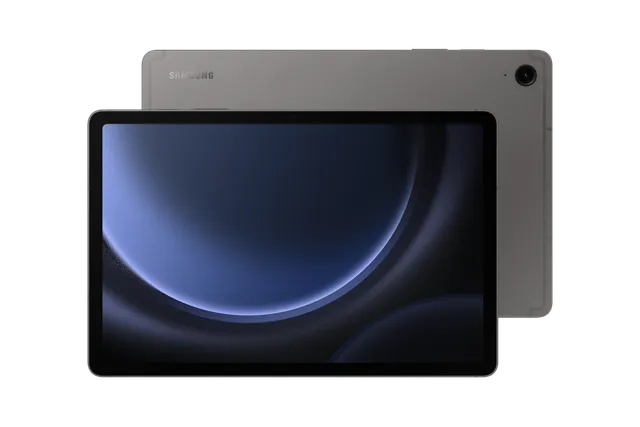
Gray
Tablet · Samsung Galaxy Tab S9 FE
Stock firmware and official updates for the Samsung Galaxy Tab S9 FE (SM-X518U), by region.
 Canada CHRBuildX518UVLSGEZI3AndroidAndroid 16Security patchSep 2026ReleasedOct 16, 2026DetailsWhat's newCanada FMCBuildX518UVLSGEZI3AndroidAndroid 16Security patchSep 2026ReleasedOct 16, 2026DetailsWhat's new
Samsung's official release notes, newest first.
• Security The device is protected with improved security. These changes may vary depending on the model, country, or network operator of the customer environment.
Released for 7 CSCs: CHR, FMC, KDO, RWC, TBT, TLS, XAC
Source: Samsung• Security The device is protected with improved security. These changes may vary depending on the model, country, or network operator of the customer environment.
Released for 6 CSCs: ATT, CHA, TMB, TMK, USC, VZW
Source: Samsung• Security The device is protected with improved security. These changes may vary depending on the model, country, or network operator of the customer environment.
Released for 6 CSCs: ATT, CHA, TMB, TMK, USC, VZW
Source: Samsung• Security The device is protected with improved security. These changes may vary depending on the model, country, or network operator of the customer environment.
Canada KDOCanada RWCBuildX518UVLSGEZI3AndroidAndroid 16Security patchSep 2026ReleasedOct 16, 2026DetailsWhat's newCanada TBTBuildX518UVLSGEZI3AndroidAndroid 16Security patchSep 2026ReleasedOct 16, 2026DetailsWhat's newCanada TLSBuildX518UVLSGEZI3AndroidAndroid 16Security patchSep 2026ReleasedOct 16, 2026DetailsWhat's newCanada XACBuildX518UVLSGEZI3AndroidAndroid 16Security patchSep 2026ReleasedOct 16, 2026DetailsWhat's new United States ATTBuildX518USQSHEZI3AndroidAndroid 16Security patchSep 2026ReleasedOct 6, 2026DetailsWhat's newUnited States CHABuildX518USQSHEZI3AndroidAndroid 16Security patchSep 2026ReleasedOct 6, 2026DetailsWhat's newUnited States TMBBuildX518USQSHEZI3AndroidAndroid 16Security patchSep 2026ReleasedOct 6, 2026DetailsWhat's newUnited States TMKBuildX518USQSHEZI3AndroidAndroid 16Security patchSep 2026ReleasedOct 6, 2026DetailsWhat's newUnited States USCBuildX518USQSHEZI3AndroidAndroid 16Security patchSep 2026ReleasedOct 6, 2026DetailsWhat's newUnited States VZWBuildX518USQSHEZI3AndroidAndroid 16Security patchSep 2026ReleasedOct 6, 2026DetailsWhat's new
Released for 7 CSCs: CHR, FMC, KDO, RWC, TBT, TLS, XAC
• Security The device is protected with improved security. These changes may vary depending on the model, country, or network operator of the customer environment.
Released for 6 CSCs: ATT, CHA, TMB, TMK, USC, VZW
Source: Samsung• Security The device is protected with improved security. These changes may vary depending on the model, country, or network operator of the customer environment.
Released for 7 CSCs: CHR, FMC, KDO, RWC, TBT, TLS, XAC
Source: Samsung• Security The device is protected with improved security. These changes may vary depending on the model, country, or network operator of the customer environment.
Released for 6 CSCs: ATT, CHA, TMB, TMK, USC, VZW
Source: SamsungOne UI 8.5 Visual design Fresh new look One UI seamlessly integrates into your daily routine by combining immersive visuals with meaningful personalization for a more refined and sophisticated design. Transparent blur effects add depth and make content easier to navigate, while floating elements react organically to your workflow for a more focused experience. Through familiar and intuitive data visualization, One UI delivers a design that feels both personal and relatable, helping you focus on what matters. Bixby Smarter device control Talk to Bixby in your own words. Bixby is now better at finding the setting or feature you need, even if you don’t use exact commands or feature names. Just say what you need and let Bixby do the rest. Ask anything, anytime Whether you need a quick answer or detailed information, just ask Bixby for an instant response. There's no need to spend time on multiple searches or switching between apps. Conversation history Looking back at past conversations with Bixby is easier than ever. You can now access your conversation history from the side panel in the Bixby app. Camera New filters Three new filters are available to add vibrant film-like effects to your pictures. Home and Lock screens New downloadable wallpapers Discover new wallpapers featuring interactive elements. Wallpapers are downloadable so they don’t use up your storage space when not in use. More customizable clock fonts Personalize your Lock screen clock. You can now adjust the thickness of more font styles to match your preferred look. Weather Enhanced weather widget Quickly check upcoming precipitation in the Weather widget on your Home screen. The widget now shows a graph if precipitation is expected in the next few hours. Pollen index Check how much pollen is in the air to help manage your allergies. You can check pollen levels for trees, grass, and ragweed. Clock Weather alarm backgrounds Wake up to an alarm that gets you ready for the day’s weather. Your alarm screen can now show the current weather conditions as a background when it rings. Time zone converter Compare time zones at a glance. The new slider in the Clock app makes it easy to check the time difference between places around the world. Connectivity Storage Share Access your files anywhere. Files from your other Samsung phones, tablets, and PCs are available in the My Files app on your tablet. You can also access your tablet's files on other Samsung devices, even your TV. Auto Hotspot Share your tablet's internet connection more easily. You can now share your hotspot with your Samsung account family group, or create your own hotspot sharing group with anyone you choose. Family device sharing Easily connect and share files, screens, cameras, storage and more with your family. Family device sharing lets you use features like Quick Share, Camera Share, Storage Share, Auto Hotspot, and Multi control with Galaxy devices that belong to your family members. Quickly connect to Smart View devices Connect to your favorite display faster. You can now add a shortcut on your Home screen to instantly mirror your tablet’s screen to a TV or other display device. Quick Share Avoid unwanted sharing requests You can now set Quick Share to only receive files from other devices signed in to your Samsung account or Google account. Samsung Health Enhanced weekly reports See a fuller picture of your health each week. Weekly reports now include data from your medication tracker and mindfulness sessions. Upgraded sharing experience Share your workouts your way. Mix and match your exercise stats with photos from your workout to create the perfect social media post. Battery and power Revamped battery info See your battery use more clearly. The redesigned Battery settings screen makes it easier to check remaining time, charging status, and daily usage over the past week. Improved Power saving Use Power saving to make your battery last longer without charging. Choose Standard for moderate savings and customizable limits, or choose Maximum to turn off all non-essential features and make your battery last as long as possible. Security and privacy Turn off Auto blocker temporarily If you need to temporarily disable Auto blocker's security protection, a new option lets you turn it on automatically 30 minutes later so you don't forget. Check the security status of your devices Keep all your devices protected. Knox Matrix now shows when any of the supported devices signed in to your Samsung account need a software update for the latest security protections. Accessibility Easily control Bluetooth hearing aids Access settings for your Bluetooth hearing aids directly from the Accessibility shortcut. A pop-up will appear that lets you change your hearing program, turn Ambient sound on or off, and more. Control magnification with mouse or keyboard Keep what you need magnified in view with these new options. You can make the magnified area follow the cursor as you type or move when you change focus using the keyboard. When using a mouse, you can make the magnified area shift as you move the pointer to the edge of the screen. Dwell action and Corner actions The Auto action after pointer stops feature has been divided into 2 features. Dwell action lets you set custom actions when your mouse stops moving for a certain amount of time. Corner actions let you set a different action for each corner of the screen. Even more improvements More customizable quick panel Arrange your quick settings just the way you like them. You can now add, remove, reorder, and reorganize controls in the quick panel. Early alerts for reminders Get alerts before reminders are due to make sure you don’t forget important tasks. You can choose how far in advance to get an alert for each reminder. Insert tables in Samsung Notes Organize information in your notes with tables. You can adjust column widths, colors, and border designs while the auto calculation feature helps you stay productive and save time. Redesigned New tab page The page that appears when you open a new tab in Samsung Browser has been redesigned to help you quickly access the websites and features you need the most. The New tab page now shows the current security status as well as open tabs from Samsung Browser on other devices. Partial screen recording Include only what you need in your screen recordings. You can now select only the part of the screen that you want to record. Calculator nudges Save time on calculations. Numbers and formulas copied to your clipboard will be suggested when you open Calculator so you can enter them with a quick tap. Keep window sizes in DeX DeX now remembers your app window sizes and positions. When you open an app again, it appears just as you left it.
Released for 6 CSCs: ATT, CHA, TMB, TMK, USC, VZW
Source: SamsungOne UI 8.5 Visual design Fresh new look One UI seamlessly integrates into your daily routine by combining immersive visuals with meaningful personalization for a more refined and sophisticated design. Transparent blur effects add depth and make content easier to navigate, while floating elements react organically to your workflow for a more focused experience. Through familiar and intuitive data visualization, One UI delivers a design that feels both personal and relatable, helping you focus on what matters. Bixby Smarter device control Talk to Bixby in your own words. Bixby is now better at finding the setting or feature you need, even if you don’t use exact commands or feature names. Just say what you need and let Bixby do the rest. Ask anything, anytime Whether you need a quick answer or detailed information, just ask Bixby for an instant response. There's no need to spend time on multiple searches or switching between apps. Conversation history Looking back at past conversations with Bixby is easier than ever. You can now access your conversation history from the side panel in the Bixby app. Camera New filters Three new filters are available to add vibrant film-like effects to your pictures. Home and Lock screens New downloadable wallpapers Discover new wallpapers featuring interactive elements. Wallpapers are downloadable so they don’t use up your storage space when not in use. More customizable clock fonts Personalize your Lock screen clock. You can now adjust the thickness of more font styles to match your preferred look. Weather Enhanced weather widget Quickly check upcoming precipitation in the Weather widget on your Home screen. The widget now shows a graph if precipitation is expected in the next few hours. Pollen index Check how much pollen is in the air to help manage your allergies. You can check pollen levels for trees, grass, and ragweed. Clock Weather alarm backgrounds Wake up to an alarm that gets you ready for the day’s weather. Your alarm screen can now show the current weather conditions as a background when it rings. Time zone converter Compare time zones at a glance. The new slider in the Clock app makes it easy to check the time difference between places around the world. Connectivity Storage Share Access your files anywhere. Files from your other Samsung phones, tablets, and PCs are available in the My Files app on your tablet. You can also access your tablet's files on other Samsung devices, even your TV. Auto Hotspot Share your tablet's internet connection more easily. You can now share your hotspot with your Samsung account family group, or create your own hotspot sharing group with anyone you choose. Family device sharing Easily connect and share files, screens, cameras, storage and more with your family. Family device sharing lets you use features like Quick Share, Camera Share, Storage Share, Auto Hotspot, and Multi control with Galaxy devices that belong to your family members. Quickly connect to Smart View devices Connect to your favorite display faster. You can now add a shortcut on your Home screen to instantly mirror your tablet’s screen to a TV or other display device. Quick Share Avoid unwanted sharing requests You can now set Quick Share to only receive files from other devices signed in to your Samsung account or Google account. Samsung Health Enhanced weekly reports See a fuller picture of your health each week. Weekly reports now include data from your medication tracker and mindfulness sessions. Upgraded sharing experience Share your workouts your way. Mix and match your exercise stats with photos from your workout to create the perfect social media post. Battery and power Revamped battery info See your battery use more clearly. The redesigned Battery settings screen makes it easier to check remaining time, charging status, and daily usage over the past week. Improved Power saving Use Power saving to make your battery last longer without charging. Choose Standard for moderate savings and customizable limits, or choose Maximum to turn off all non-essential features and make your battery last as long as possible. Security and privacy Turn off Auto blocker temporarily If you need to temporarily disable Auto blocker's security protection, a new option lets you turn it on automatically 30 minutes later so you don't forget. Check the security status of your devices Keep all your devices protected. Knox Matrix now shows when any of the supported devices signed in to your Samsung account need a software update for the latest security protections. Accessibility Easily control Bluetooth hearing aids Access settings for your Bluetooth hearing aids directly from the Accessibility shortcut. A pop-up will appear that lets you change your hearing program, turn Ambient sound on or off, and more. Control magnification with mouse or keyboard Keep what you need magnified in view with these new options. You can make the magnified area follow the cursor as you type or move when you change focus using the keyboard. When using a mouse, you can make the magnified area shift as you move the pointer to the edge of the screen. Dwell action and Corner actions The Auto action after pointer stops feature has been divided into 2 features. Dwell action lets you set custom actions when your mouse stops moving for a certain amount of time. Corner actions let you set a different action for each corner of the screen. Even more improvements More customizable quick panel Arrange your quick settings just the way you like them. You can now add, remove, reorder, and reorganize controls in the quick panel. Early alerts for reminders Get alerts before reminders are due to make sure you don’t forget important tasks. You can choose how far in advance to get an alert for each reminder. Insert tables in Samsung Notes Organize information in your notes with tables. You can adjust column widths, colors, and border designs while the auto calculation feature helps you stay productive and save time. Redesigned New tab page The page that appears when you open a new tab in Samsung Browser has been redesigned to help you quickly access the websites and features you need the most. The New tab page now shows the current security status as well as open tabs from Samsung Browser on other devices. Partial screen recording Include only what you need in your screen recordings. You can now select only the part of the screen that you want to record. Calculator nudges Save time on calculations. Numbers and formulas copied to your clipboard will be suggested when you open Calculator so you can enter them with a quick tap. Keep window sizes in DeX DeX now remembers your app window sizes and positions. When you open an app again, it appears just as you left it.
Released for 7 CSCs: CHR, FMC, KDO, RWC, TBT, TLS, XAC
Source: Samsung• Security The device is protected with improved security. These changes may vary depending on the model, country, or network operator of the customer environment.
Released for 5 CSCs: ATT, CHA, TMB, TMK, VZW
Source: Samsung• Security The device is protected with improved security. These changes may vary depending on the model, country, or network operator of the customer environment.
Released for 7 CSCs: CHR, FMC, KDO, RWC, TBT, TLS, XAC
Source: Samsung• Security The device is protected with improved security. These changes may vary depending on the model, country, or network operator of the customer environment.
Released for 1 CSC: USC
Source: Samsung• Security The device is protected with improved security. These changes may vary depending on the model, country, or network operator of the customer environment.
Released for 7 CSCs: CHR, FMC, KDO, RWC, TBT, TLS, XAC
Source: Samsung• Security The device is protected with improved security. These changes may vary depending on the model, country, or network operator of the customer environment.
Released for 5 CSCs: ATT, CHA, TMB, TMK, VZW
Source: Samsung• Security The device is protected with improved security. These changes may vary depending on the model, country, or network operator of the customer environment.
Released for 1 CSC: USC
Source: Samsung• Security The device is protected with improved security. These changes may vary depending on the model, country, or network operator of the customer environment.
Released for 7 CSCs: CHR, FMC, KDO, RWC, TBT, TLS, XAC
Source: Samsung• Security The device is protected with improved security. These changes may vary depending on the model, country, or network operator of the customer environment.
Released for 1 CSC: USC
Source: Samsung• Security The device is protected with improved security. These changes may vary depending on the model, country, or network operator of the customer environment.
Released for 5 CSCs: ATT, CHA, TMB, TMK, VZW
Source: Samsung• Security The device is protected with improved security. These changes may vary depending on the model, country, or network operator of the customer environment.
Released for 1 CSC: USC
Source: SamsungOne UI 8.0 (Android 16) Personalization Enhanced Lock screen widgets Do more on your Lock screen with brief widgets. 2 x 2 size widgets are now available, and the widget area is now larger so you can add even more widgets. You can choose either a horizontal or vertical widget layout. Productivity Check stock prices without unlocking Stocks you follow on Google Finance with big price changes will appear on your Now bar at the end of the trading day. Easier file sharing with Quick Share It's never been easier to send and receive files. Tap the Quick Share button in quick settings to get started. You can receive files while the Quick Share screen is open and send files to others directly from Quick Share. Sticky notes Add quick annotations on top of documents in Samsung Notes. There's no limit to the number of sticky notes you can add, and it's easy to remove them later without disturbing the original document. Find downloads fast You can now filter files based on the app that was used to download them. Works in the Downloaded and Recent views in My Files. Multi-pane file browsing It's easier to keep track of file paths when using My Files on a large screen. When you open a new folder, a new pane will be opened to show what's inside so you can easily get back to where you came from. Redesigned Samsung Internet Access the features you need quickly. The Samsung Internet menu has been optimized to make it easy to access the features you use most. You can also customize the layout to match your personal preferences. Multitasking Discover the new Samsung DeX Easily access a desktop workspace any time by swiping down from the handle at the top of the screen and seamlessly switch between tablet view and DeX. Enhanced split screen view While 2 apps are open in split screen view, you can push one app against the edge of the screen to keep it partially visible while giving most of your focus to the other app. Tap the smaller app any time to switch between them quickly. Open 3 apps in split screen While your tablet is in landscape orientation, you can now open 3 apps side-by-side. Apps will appear in portrait view, just like they would look on a standard phone screen. Reminder New Reminder interface The Reminder app has been redesigned with categories shown at the top of the screen, making it easier to see how many reminders are in each category with a quick glance. Custom categories can be hidden with a quick tap to free up more screen space. Tap one more time to make them appear again. New sample reminders Discover the power of reminders. Sample reminder templates are now available in the Reminder app. Explore these reminders to see what you can do to manage important tasks in your life. Add reminders easily It's never been easier to add new reminders. Just type your reminder into the box at the bottom of the screen. Suggestions will appear as you type that you can tap to save time. You can add checklists, locations, and pictures using the buttons below the text box. Or, if you don't want to type at all, tap the Mic icon for voice input. Calendar Multi-pane view See more at once on large screens in landscape view. You can view your monthly schedule and the schedule for an individual day side by side. Manage reminders in Calendar You can easily create reminders in the Calendar app without opening the Reminder app. Whenever you tap the + button, you'll have the choice of adding an event or a reminder. You can also drag and drop reminders on your calendar to reschedule them. Add events quickly When you start adding an event in the quick add menu, you'll get suggestions for event names and times based on your past events. Just tap one of the suggestions to add an event without additional typing. Samsung Health Bedtime guidance Get to sleep at the right time so you wake up feeling refreshed. The new Bedtime guidance feature analyzes your sleep data and recommends the best time to go to sleep each night. Running challenges In addition to step challenges, you can now challenge your friends to run. You can set a target distance and see who gets there the fastest or set a time limit and see who runs the farthest. Food recording reminders Stay on track to meet your calorie goals. You can now set reminders for recording your food intake in Samsung Health. Share health data with friends and family You can now share health data with anyone you choose, even if they're not a member of your family group. Photo and video Swipe up or down to open quick controls Access quick controls in Camera even quicker than before by swiping up or down anywhere in the preview area. In Camera settings, change the Swipe up/down option to open quick controls. Audio enhancements Quick access to Galaxy Buds settings It's easier than ever before to control your Galaxy Buds. You can now adjust Buds settings directly from your tablet's Settings without the need to open the Galaxy Wearable app. Security and privacy Enhanced Secure Folder Keep sensitive apps and data in a separate, protected area of your tablet. You can now set Secure Folder to close apps and prevent notifications when you lock it. You can also completely hide and encrypt your Secure Folder for maximum protection. Stronger account security Knox Matrix regularly scans devices signed in to your Samsung account for security risks. When a serious risk is found on a device, that device will be automatically signed out of your Samsung account to protect the security risk from spreading to your account and other devices. You can check the security status of your devices any time in Security and privacy settings. Show or hide notification content while locked The option to show or hide notification content while your tablet is locked is now located in Notifications settings. Choose to show content for quick access to notifications without unlocking your tablet, or choose to hide content to keep your notifications private and prevent others from seeing them. Accessibility Pinch and zoom with the Assistant menu The Assistant menu now provides more ways to zoom in and out on the screen. In addition to dragging with one finger, you can now adjust the zoom level by pressing buttons on the screen. Control mouse actions with your keyboard If you can't or don't want to use a mouse, turn on Mouse keys in Accessibility settings to use your physical keyboard to move the mouse pointer, click, hold, and scroll. Magnify your keyboard You can now make the keys on the on-screen keyboard larger so they're easier to see and tap. Turn on Magnify keyboard while typing in Magnification settings to try it. Easily pair Bluetooth hearing aids You can now pair and connect your Bluetooth hearing aid devices directly on the Hearing aid support screen in Accessibility settings. Modes and routines New preset routines Check out the new preset routines for weather and other advanced conditions. Use them as they are, or customize them to meet your needs. New routine actions New actions are available for getting data from the Clock, Calendar, and Samsung Notes apps. After you get data, you can use it in other conditions or actions in your routine. Even more improvements Enhanced multitasking with Google Gemini Get help from Gemini while keeping other apps visible. Gemini now takes up less space on the screen and provides an option to easily switch to split-screen view. Easily organize alarms You can now add existing alarms to an alarm group by tapping the + button on the Alarm group screen. You can also add an alarm group to a widget on your Home screen so you can turn all of the alarms in the group on or off with a single tap. Enhanced app notification settings You can now choose the pop-up notification style for each app separately in the app’s notification settings. Revamped weather visuals The Weather app now provides more rich and realistic images to help you intuitively understand the current weather conditions.
Released for 5 CSCs: FMC, KDO, RWC, TLS, XAC
Source: SamsungOne UI 8.0 (Android 16) Personalization Enhanced Lock screen widgets Do more on your Lock screen with brief widgets. 2 x 2 size widgets are now available, and the widget area is now larger so you can add even more widgets. You can choose either a horizontal or vertical widget layout. Productivity Check stock prices without unlocking Stocks you follow on Google Finance with big price changes will appear on your Now bar at the end of the trading day. Easier file sharing with Quick Share It's never been easier to send and receive files. Tap the Quick Share button in quick settings to get started. You can receive files while the Quick Share screen is open and send files to others directly from Quick Share. Sticky notes Add quick annotations on top of documents in Samsung Notes. There's no limit to the number of sticky notes you can add, and it's easy to remove them later without disturbing the original document. Find downloads fast You can now filter files based on the app that was used to download them. Works in the Downloaded and Recent views in My Files. Multi-pane file browsing It's easier to keep track of file paths when using My Files on a large screen. When you open a new folder, a new pane will be opened to show what's inside so you can easily get back to where you came from. Redesigned Samsung Internet Access the features you need quickly. The Samsung Internet menu has been optimized to make it easy to access the features you use most. You can also customize the layout to match your personal preferences. Multitasking Discover the new Samsung DeX Easily access a desktop workspace any time by swiping down from the handle at the top of the screen and seamlessly switch between tablet view and DeX. Enhanced split screen view While 2 apps are open in split screen view, you can push one app against the edge of the screen to keep it partially visible while giving most of your focus to the other app. Tap the smaller app any time to switch between them quickly. Open 3 apps in split screen While your tablet is in landscape orientation, you can now open 3 apps side-by-side. Apps will appear in portrait view, just like they would look on a standard phone screen. Reminder New Reminder interface The Reminder app has been redesigned with categories shown at the top of the screen, making it easier to see how many reminders are in each category with a quick glance. Custom categories can be hidden with a quick tap to free up more screen space. Tap one more time to make them appear again. New sample reminders Discover the power of reminders. Sample reminder templates are now available in the Reminder app. Explore these reminders to see what you can do to manage important tasks in your life. Add reminders easily It's never been easier to add new reminders. Just type your reminder into the box at the bottom of the screen. Suggestions will appear as you type that you can tap to save time. You can add checklists, locations, and pictures using the buttons below the text box. Or, if you don't want to type at all, tap the Mic icon for voice input. Calendar Multi-pane view See more at once on large screens in landscape view. You can view your monthly schedule and the schedule for an individual day side by side. Manage reminders in Calendar You can easily create reminders in the Calendar app without opening the Reminder app. Whenever you tap the + button, you'll have the choice of adding an event or a reminder. You can also drag and drop reminders on your calendar to reschedule them. Add events quickly When you start adding an event in the quick add menu, you'll get suggestions for event names and times based on your past events. Just tap one of the suggestions to add an event without additional typing. Samsung Health Bedtime guidance Get to sleep at the right time so you wake up feeling refreshed. The new Bedtime guidance feature analyzes your sleep data and recommends the best time to go to sleep each night. Running challenges In addition to step challenges, you can now challenge your friends to run. You can set a target distance and see who gets there the fastest or set a time limit and see who runs the farthest. Food recording reminders Stay on track to meet your calorie goals. You can now set reminders for recording your food intake in Samsung Health. Share health data with friends and family You can now share health data with anyone you choose, even if they're not a member of your family group. Photo and video Swipe up or down to open quick controls Access quick controls in Camera even quicker than before by swiping up or down anywhere in the preview area. In Camera settings, change the Swipe up/down option to open quick controls. Audio enhancements Quick access to Galaxy Buds settings It's easier than ever before to control your Galaxy Buds. You can now adjust Buds settings directly from your tablet's Settings without the need to open the Galaxy Wearable app. Security and privacy Enhanced Secure Folder Keep sensitive apps and data in a separate, protected area of your tablet. You can now set Secure Folder to close apps and prevent notifications when you lock it. You can also completely hide and encrypt your Secure Folder for maximum protection. Stronger account security Knox Matrix regularly scans devices signed in to your Samsung account for security risks. When a serious risk is found on a device, that device will be automatically signed out of your Samsung account to protect the security risk from spreading to your account and other devices. You can check the security status of your devices any time in Security and privacy settings. Show or hide notification content while locked The option to show or hide notification content while your tablet is locked is now located in Notifications settings. Choose to show content for quick access to notifications without unlocking your tablet, or choose to hide content to keep your notifications private and prevent others from seeing them. Accessibility Pinch and zoom with the Assistant menu The Assistant menu now provides more ways to zoom in and out on the screen. In addition to dragging with one finger, you can now adjust the zoom level by pressing buttons on the screen. Control mouse actions with your keyboard If you can't or don't want to use a mouse, turn on Mouse keys in Accessibility settings to use your physical keyboard to move the mouse pointer, click, hold, and scroll. Magnify your keyboard You can now make the keys on the on-screen keyboard larger so they're easier to see and tap. Turn on Magnify keyboard while typing in Magnification settings to try it. Easily pair Bluetooth hearing aids You can now pair and connect your Bluetooth hearing aid devices directly on the Hearing aid support screen in Accessibility settings. Modes and routines New preset routines Check out the new preset routines for weather and other advanced conditions. Use them as they are, or customize them to meet your needs. New routine actions New actions are available for getting data from the Clock, Calendar, and Samsung Notes apps. After you get data, you can use it in other conditions or actions in your routine. Even more improvements Enhanced multitasking with Google Gemini Get help from Gemini while keeping other apps visible. Gemini now takes up less space on the screen and provides an option to easily switch to split-screen view. Easily organize alarms You can now add existing alarms to an alarm group by tapping the + button on the Alarm group screen. You can also add an alarm group to a widget on your Home screen so you can turn all of the alarms in the group on or off with a single tap. Enhanced app notification settings You can now choose the pop-up notification style for each app separately in the app’s notification settings. Revamped weather visuals The Weather app now provides more rich and realistic images to help you intuitively understand the current weather conditions.
Released for 5 CSCs: ATT, CHA, TMB, TMK, VZW
Source: SamsungOne UI 8.0 (Android 16) Personalization Enhanced Lock screen widgets Do more on your Lock screen with brief widgets. 2 x 2 size widgets are now available, and the widget area is now larger so you can add even more widgets. You can choose either a horizontal or vertical widget layout. Productivity Check stock prices without unlocking Stocks you follow on Google Finance with big price changes will appear on your Now bar at the end of the trading day. Easier file sharing with Quick Share It's never been easier to send and receive files. Tap the Quick Share button in quick settings to get started. You can receive files while the Quick Share screen is open and send files to others directly from Quick Share. Sticky notes Add quick annotations on top of documents in Samsung Notes. There's no limit to the number of sticky notes you can add, and it's easy to remove them later without disturbing the original document. Find downloads fast You can now filter files based on the app that was used to download them. Works in the Downloaded and Recent views in My Files. Multi-pane file browsing It's easier to keep track of file paths when using My Files on a large screen. When you open a new folder, a new pane will be opened to show what's inside so you can easily get back to where you came from. Redesigned Samsung Internet Access the features you need quickly. The Samsung Internet menu has been optimized to make it easy to access the features you use most. You can also customize the layout to match your personal preferences. Multitasking Discover the new Samsung DeX Easily access a desktop workspace any time by swiping down from the handle at the top of the screen and seamlessly switch between tablet view and DeX. Enhanced split screen view While 2 apps are open in split screen view, you can push one app against the edge of the screen to keep it partially visible while giving most of your focus to the other app. Tap the smaller app any time to switch between them quickly. Open 3 apps in split screen While your tablet is in landscape orientation, you can now open 3 apps side-by-side. Apps will appear in portrait view, just like they would look on a standard phone screen. Reminder New Reminder interface The Reminder app has been redesigned with categories shown at the top of the screen, making it easier to see how many reminders are in each category with a quick glance. Custom categories can be hidden with a quick tap to free up more screen space. Tap one more time to make them appear again. New sample reminders Discover the power of reminders. Sample reminder templates are now available in the Reminder app. Explore these reminders to see what you can do to manage important tasks in your life. Add reminders easily It's never been easier to add new reminders. Just type your reminder into the box at the bottom of the screen. Suggestions will appear as you type that you can tap to save time. You can add checklists, locations, and pictures using the buttons below the text box. Or, if you don't want to type at all, tap the Mic icon for voice input. Calendar Multi-pane view See more at once on large screens in landscape view. You can view your monthly schedule and the schedule for an individual day side by side. Manage reminders in Calendar You can easily create reminders in the Calendar app without opening the Reminder app. Whenever you tap the + button, you'll have the choice of adding an event or a reminder. You can also drag and drop reminders on your calendar to reschedule them. Add events quickly When you start adding an event in the quick add menu, you'll get suggestions for event names and times based on your past events. Just tap one of the suggestions to add an event without additional typing. Samsung Health Bedtime guidance Get to sleep at the right time so you wake up feeling refreshed. The new Bedtime guidance feature analyzes your sleep data and recommends the best time to go to sleep each night. Running challenges In addition to step challenges, you can now challenge your friends to run. You can set a target distance and see who gets there the fastest or set a time limit and see who runs the farthest. Food recording reminders Stay on track to meet your calorie goals. You can now set reminders for recording your food intake in Samsung Health. Share health data with friends and family You can now share health data with anyone you choose, even if they're not a member of your family group. Photo and video Swipe up or down to open quick controls Access quick controls in Camera even quicker than before by swiping up or down anywhere in the preview area. In Camera settings, change the Swipe up/down option to open quick controls. Audio enhancements Quick access to Galaxy Buds settings It's easier than ever before to control your Galaxy Buds. You can now adjust Buds settings directly from your tablet's Settings without the need to open the Galaxy Wearable app. Security and privacy Enhanced Secure Folder Keep sensitive apps and data in a separate, protected area of your tablet. You can now set Secure Folder to close apps and prevent notifications when you lock it. You can also completely hide and encrypt your Secure Folder for maximum protection. Stronger account security Knox Matrix regularly scans devices signed in to your Samsung account for security risks. When a serious risk is found on a device, that device will be automatically signed out of your Samsung account to protect the security risk from spreading to your account and other devices. You can check the security status of your devices any time in Security and privacy settings. Show or hide notification content while locked The option to show or hide notification content while your tablet is locked is now located in Notifications settings. Choose to show content for quick access to notifications without unlocking your tablet, or choose to hide content to keep your notifications private and prevent others from seeing them. Accessibility Pinch and zoom with the Assistant menu The Assistant menu now provides more ways to zoom in and out on the screen. In addition to dragging with one finger, you can now adjust the zoom level by pressing buttons on the screen. Control mouse actions with your keyboard If you can't or don't want to use a mouse, turn on Mouse keys in Accessibility settings to use your physical keyboard to move the mouse pointer, click, hold, and scroll. Magnify your keyboard You can now make the keys on the on-screen keyboard larger so they're easier to see and tap. Turn on Magnify keyboard while typing in Magnification settings to try it. Easily pair Bluetooth hearing aids You can now pair and connect your Bluetooth hearing aid devices directly on the Hearing aid support screen in Accessibility settings. Modes and routines New preset routines Check out the new preset routines for weather and other advanced conditions. Use them as they are, or customize them to meet your needs. New routine actions New actions are available for getting data from the Clock, Calendar, and Samsung Notes apps. After you get data, you can use it in other conditions or actions in your routine. Even more improvements Enhanced multitasking with Google Gemini Get help from Gemini while keeping other apps visible. Gemini now takes up less space on the screen and provides an option to easily switch to split-screen view. Easily organize alarms You can now add existing alarms to an alarm group by tapping the + button on the Alarm group screen. You can also add an alarm group to a widget on your Home screen so you can turn all of the alarms in the group on or off with a single tap. Enhanced app notification settings You can now choose the pop-up notification style for each app separately in the app’s notification settings. Revamped weather visuals The Weather app now provides more rich and realistic images to help you intuitively understand the current weather conditions.
Released for 1 CSC: USC
Source: Samsung• Security The device is protected with improved security. These changes may vary depending on the model, country, or network operator of the customer environment.
Released for 5 CSCs: FMC, KDO, RWC, TLS, XAC
Source: Samsung• Security The device is protected with improved security. These changes may vary depending on the model, country, or network operator of the customer environment.
Released for 6 CSCs: ATT, CHA, TMB, TMK, USC, VZW
Source: Samsung• Security The device is protected with improved security. These changes may vary depending on the model, country, or network operator of the customer environment.
Released for 5 CSCs: FMC, KDO, RWC, TLS, XAC
Source: Samsung• Security The device is protected with improved security. These changes may vary depending on the model, country, or network operator of the customer environment.
Released for 6 CSCs: ATT, CHA, TMB, TMK, USC, VZW
Source: SamsungOne UI 7.0 Upgrade (Android 15) Bold new look Visual enhancements Enjoy a more sophisticated and unique look. One UI 7 introduces a stunning redesign to key components including buttons, menus, notifications and control bars, providing a more consistent visual experience with curves and circles. Beautiful new colors, soft animations, and an innovative blur effect that's unique to One UI make information hierarchy clearer and help you focus on important information. Reimagined Home screen Fresh new app icons will look great on your Home screen with new visual metaphors and color schemes that make it easier to recognize the app you need. Widgets have been completely redesigned with more colorful images and more consistent layouts. Folders on your Home screen can also be made larger so you can instantly access apps without opening the folder first. Simplified Home screen grid Your Home screen now looks even better than before. A new standard grid layout keeps things symmetrical and makes it easier to use One UI widgets in standard sizes. Portrait/landscape Home screen customization Keep your Home screen looking its best no matter how you're holding your tablet. You can customize your portrait and landscape Home screen layouts separately. The same apps and widgets will appear in both layouts, but you can move them around and resize them separately. Customize your app and widget style Make your Home screen look just the way you like it. You can now adjust the size of app icons and choose whether or not to show text labels below app icons and featured widgets. You can also adjust shape, background color, and transparency in the settings for each widget. Auto hide taskbar Save more screen space for your apps by automatically hiding the taskbar when you open an app. To make it come back, swipe up slowly from the bottom of the screen. Lock screen Stay on top of important tasks with the Now bar Check the information you need right now and start essential features without unlocking your tablet. Ongoing tasks will appear in the Now bar at the bottom of your Lock screen so you can check key information quickly. Information includes media controls, Stopwatch, Timer, Voice Recorder, Samsung Health, and more. More widgets and shortcuts You can now see more and do more even when your tablet is locked. Add a widget to show pictures and stories from your Gallery, or try a shortcut that opens the QR code scanner with a quick swipe. Quick panel and notifications Separate notification and quick panels Instantly access the panel you need with more space for quick settings. Swipe down from the top right corner of the screen to open the quick settings panel. Swipe down from anywhere else on the top of the screen to open the notification panel. Customize your quick panel Create the quick panel layout that's right for you. You can tap the pencil icon at the top of the quick panel to enter Edit mode, then move buttons and controls up and down to match your preferences. Live notifications Stay on top of what's happening right now. Live notifications show you the progress of ongoing activities like timers, voice recordings, exercises, and more so you can take quick actions related to them. Live notifications will appear in the Now bar on the Lock screen, on the status bar, and at the top of the notification panel. New notification layout Icons on notifications are now the same as the icon that appears on your Home screen, making it easy to recognize which app sent each notification. Grouped notifications appear as a stack of cards. Tap a stack to show all notifications in the group. Instantly access useful information Press and hold the Side button to access Google Gemini The Side button is a new way to access Google Gemini or other digital assistant app quickly instead of using the corner swipe. You can change what the Side button does in Settings. Complete multiple tasks with one ask Google Gemini is now seamlessly integrated with Samsung apps such as Calendar, Notes, Reminder, and Clock. You can complete tasks in these apps using information from Gemini with one simple command. Try asking Google Gemini to ask about a YouTube video and save the result in Samsung Notes, or try asking Google Gemini to find your favorite sports team’s schedule and add the games to your calendar. Circle it, find it. Hear it, find it Circle to Search with Google allows you to search anything on your screen and get information faster with AI Overviews. Just circle an object—including images, videos, or text—and you'll get results immediately. You can even search for a song that you hear in the moment without switching apps. Capture images with ease New Camera layout Camera buttons, controls, and modes have been reorganized to make it easier to find the features you need and to give you a clearer preview of the picture you're taking or the video you're recording. Mode selection improvements The More modes menu has been redesigned. Instead of filling the whole screen and blocking the camera view, you can now choose a mode from a small pop-up that only covers the bottom of the screen. Upgraded filter experience Camera filters have been completely revamped. New filters are now available and existing filters have been improved. Each filter allows fine-tuned adjustments of intensity, color temperature, contrast and saturation, making it easier to get the look you want. You can also create custom filters based on the style and mood of pictures you choose. Play audio while recording videos You can now record videos without interrupting music, podcasts, or other audio content you’re listening to. Just turn on Audio playback in Advanced video options. Line up the perfect shot Get help adjusting the camera's position with grid lines and levels. Grid lines can now be turned on and off separately from the horizontal level. There's also a new option to show a vertical level. Enjoy your special moments Free-form collages Go beyond the preset layouts for collages in Gallery. You can now adjust the size, position, and rotation of images in your collage to create your own unique layout. Edit collages in stories Make your story’s collage look just the way you like it. You now have full control to edit collages created in stories. Replace images, remove or add images, or adjust the position and size. Powerful video editing Easily undo your edits Don't worry about making mistakes. Undo and Redo options are now available when editing videos for actions such as transformations, filters, and tone changes. Animate your videos Add fun animation effects to stickers and text in your videos in Studio. Choose from fade in, fade out, wipes, rotation, and more. Manage your health Stay mindful The new Mindfulness feature in Samsung Health can help you manage stress and anxiety in your daily life. Keep track of your moods and emotions, practice breathing exercises and meditation, and more. New Samsung Health badges Stay motivated and work toward your health goals while earning new badges in Samsung Health. Challenge yourself to earn the new badges for energy score, exercise, activity, food, water, body composition, and more. Boost your productivity Previews for minimized apps When multiple pop-up windows from the same app are minimized, they'll be combined into a single icon. Tapping the icon will show a preview of all open windows from the app, allowing you to easily select the window you want. Group your alarms Create groups of alarms that you want to control together in the Clock app. You can turn off all the alarms in one group with a single tap. Keep all your alarms at the same volume For simpler setup, all of your alarms will use the same volume by default. If you prefer to set different volumes for each alarm, you can choose this in Clock Settings. Enhanced file selection The new File Picker makes it easier to attach and select files in a variety of apps. It's easy to switch between different storage locations and categories, and previews are shown to make sure you get the right files. View more on large screens My Files lets you see even more than before on large screen devices. On the right side of the screen, you can see a preview of supported files along with the file path, size, and modified date. Advanced options for routines Program your tablet to do almost anything you want. Routines are more powerful than ever before with If-Else logic and the ability to get data as variables. Plan tasks and events Easily reschedule calendar events Just drag and drop an event from one date to another on your calendar in Month view to change the event date. Show separate calendars on widgets You now have more control over which calendars appear on your calendar widgets. You can choose just one calendar and show only events from it on your Home screen, or create 2 separate calendar widgets with a different calendar on each one. Count down the days to an important event It's easier than ever to create a countdown widget for an event on your calendar. Go to the event details, then select Add countdown widget from the more options menu. A widget will appear on your home screen showing the number of days until your birthday, anniversary, vacation, or any other event that you choose. Move all events from one calendar to another Avoid the hassle of moving events one at a time. You can now move all events from one calendar to another, such as moving all events from the calendar on your tablet to a cloud-based calendar. More options for repeating reminders When you create a repeating reminder, you can now choose multiple dates for repeating instead of just one. Enhanced quick add menu It's now easier to create reminders quickly. The quick add menu now provides preset options for time and location conditions. Manage your completed reminders It’s easier to clear out the clutter from your reminder list. A new setting lets you automatically delete completed reminders after a certain period of time. You can also duplicate completed reminders so you can reuse them without entering all of the information again. Connect and share Easily connect to nearby devices It's easier than ever before to connect to other Samsung devices such as TVs, phones, PCs, earbuds, and more. Tap Nearby devices in the quick panel to see devices available near you, then drag a device to your tablet to instantly connect. You can also tap on a device to see the features available when connected to your tablet. For example, when you tap on a TV, you’ll see an option to start Smart View. Recommended devices for Quick Share Easily find the right device to share with. Devices signed in to your Samsung account and devices you've shared with in the past will appear at the top of the list so they're easy to find. Continue sharing over the internet Finish file transfers even when devices are far apart. When sharing files using Quick Share, if the devices become too far apart to continue a direct transfer, the transfer will continue seamlessly over the internet using Wi-Fi or mobile data. Protect your security Check the security status of your devices Find out about security risks and solve them quickly. Knox Matrix monitors supported devices signed in to your Samsung account and lets you how to solve security risks if any are found. Stay safe from security threats Auto Blocker does even more to protect you from cyber attacks when Maximum restrictions is turned on. 2G networks are now blocked, and your tablet won't automatically reconnect to non-secure Wi-Fi networks. These restrictions can help prevent an attacker from intercepting your network traffic. Battery and charging More options for power saving You now have more control over what happens when your tablet is in Power saving mode. Choose exactly the features you want to limit to save the amount of battery that's right for you. You can even change these options while Power saving is on. More control over battery protection When you turn on Battery protection, you can now adjust the maximum charging level anywhere between 80% and 95%. New charging effect When you plug in a charger, the charging confirmation is smaller and appears at the bottom of the screen instead of the middle to prevent interruptions while still making it easy to check the charging status. Accessible to everyone Zoom in and out with just one finger Zooming in and out just got easier. For people who have difficulty using pinch zoom, you can now activate 1-finger zoom from the Assistant menu. Swipe up or right to zoom in. Swipe down or left to zoom out. Enhanced screen controls The Assistant menu now does even more to help you control the screen. You can now double tap and touch and hold just by tapping a single button. New scrolling controls let you move around the screen a specific distance by tapping the start and end points on the screen. Customize your touch interactions Get help choosing the settings that are most comfortable for you. New tests are available for the Touch and hold delay, Tap duration, and Ignore repeated touches settings. The test can tell you if your current settings are appropriate or need adjustments. Even more improvements Press and hold the side button to access your digital assistant The Side button is a new way to access your default digital assistant app quickly instead of using the corner swipe. You can change what the Side button does in Settings. Get useful suggestions in Smart select When you select part of the screen with Smart select, useful actions will be suggested based on what you selected. If event details are part of your selection, you’ll have an option to add it to your calendar. If you select an image, options for editing the image or improving its quality will be suggested. Watch videos again In Video Player, a button will appear at the end of each video that lets you start the video over again from the beginning. Improved contacts list For a more consistent experience, the same contact list now appears in both the Phone app and Contacts app. Menus and options are the same in both locations so you can always find what you're looking for. When searching for contacts, contacts you’ve searched for frequently appear at the top of the search results, helping you find the right person quickly. Activity forecasts It's now easy to check if the weather is suitable for outdoor activities such as running, gardening, camping, and more. You can choose up to 3 activities to show in the Weather app. Custom place labels It's easier to keep track of different locations in the Weather app. You can now set custom labels to the locations you add, such as Home, Office, School, or any other place where you want to check the weather. Boost your gaming Game Booster's in-game panel has been redesigned, making it easier to change settings quickly without leaving the action. Set performance for each game Game Booster now lets you adjust performance settings separately for each game. You can set some games to high performance and others to save battery for longer gameplay time. Find the settings that work best for you.
Released for 6 CSCs: ATT, CHA, TMB, TMK, USC, VZW
Source: SamsungOne UI 7.0 Upgrade (Android 15) Bold new look Visual enhancements Enjoy a more sophisticated and unique look. One UI 7 introduces a stunning redesign to key components including buttons, menus, notifications and control bars, providing a more consistent visual experience with curves and circles. Beautiful new colors, soft animations, and an innovative blur effect that's unique to One UI make information hierarchy clearer and help you focus on important information. Reimagined Home screen Fresh new app icons will look great on your Home screen with new visual metaphors and color schemes that make it easier to recognize the app you need. Widgets have been completely redesigned with more colorful images and more consistent layouts. Folders on your Home screen can also be made larger so you can instantly access apps without opening the folder first. Simplified Home screen grid Your Home screen now looks even better than before. A new standard grid layout keeps things symmetrical and makes it easier to use One UI widgets in standard sizes. Portrait/landscape Home screen customization Keep your Home screen looking its best no matter how you're holding your tablet. You can customize your portrait and landscape Home screen layouts separately. The same apps and widgets will appear in both layouts, but you can move them around and resize them separately. Customize your app and widget style Make your Home screen look just the way you like it. You can now adjust the size of app icons and choose whether or not to show text labels below app icons and featured widgets. You can also adjust shape, background color, and transparency in the settings for each widget. Auto hide taskbar Save more screen space for your apps by automatically hiding the taskbar when you open an app. To make it come back, swipe up slowly from the bottom of the screen. Lock screen Stay on top of important tasks with the Now bar Check the information you need right now and start essential features without unlocking your tablet. Ongoing tasks will appear in the Now bar at the bottom of your Lock screen so you can check key information quickly. Information includes media controls, Stopwatch, Timer, Voice Recorder, Samsung Health, and more. More widgets and shortcuts You can now see more and do more even when your tablet is locked. Add a widget to show pictures and stories from your Gallery, or try a shortcut that opens the QR code scanner with a quick swipe. Quick panel and notifications Separate notification and quick panels Instantly access the panel you need with more space for quick settings. Swipe down from the top right corner of the screen to open the quick settings panel. Swipe down from anywhere else on the top of the screen to open the notification panel. Customize your quick panel Create the quick panel layout that's right for you. You can tap the pencil icon at the top of the quick panel to enter Edit mode, then move buttons and controls up and down to match your preferences. Live notifications Stay on top of what's happening right now. Live notifications show you the progress of ongoing activities like timers, voice recordings, exercises, and more so you can take quick actions related to them. Live notifications will appear in the Now bar on the Lock screen, on the status bar, and at the top of the notification panel. New notification layout Icons on notifications are now the same as the icon that appears on your Home screen, making it easy to recognize which app sent each notification. Grouped notifications appear as a stack of cards. Tap a stack to show all notifications in the group. Instantly access useful information Press and hold the Side button to access Google Gemini The Side button is a new way to access Google Gemini or other digital assistant app quickly instead of using the corner swipe. You can change what the Side button does in Settings. Complete multiple tasks with one ask Google Gemini is now seamlessly integrated with Samsung apps such as Calendar, Notes, Reminder, and Clock. You can complete tasks in these apps using information from Gemini with one simple command. Try asking Google Gemini to ask about a YouTube video and save the result in Samsung Notes, or try asking Google Gemini to find your favorite sports team’s schedule and add the games to your calendar. Circle it, find it. Hear it, find it Circle to Search with Google allows you to search anything on your screen and get information faster with AI Overviews. Just circle an object—including images, videos, or text—and you'll get results immediately. You can even search for a song that you hear in the moment without switching apps. Capture images with ease New Camera layout Camera buttons, controls, and modes have been reorganized to make it easier to find the features you need and to give you a clearer preview of the picture you're taking or the video you're recording. Mode selection improvements The More modes menu has been redesigned. Instead of filling the whole screen and blocking the camera view, you can now choose a mode from a small pop-up that only covers the bottom of the screen. Upgraded filter experience Camera filters have been completely revamped. New filters are now available and existing filters have been improved. Each filter allows fine-tuned adjustments of intensity, color temperature, contrast and saturation, making it easier to get the look you want. You can also create custom filters based on the style and mood of pictures you choose. Play audio while recording videos You can now record videos without interrupting music, podcasts, or other audio content you’re listening to. Just turn on Audio playback in Advanced video options. Line up the perfect shot Get help adjusting the camera's position with grid lines and levels. Grid lines can now be turned on and off separately from the horizontal level. There's also a new option to show a vertical level. Enjoy your special moments Free-form collages Go beyond the preset layouts for collages in Gallery. You can now adjust the size, position, and rotation of images in your collage to create your own unique layout. Edit collages in stories Make your story’s collage look just the way you like it. You now have full control to edit collages created in stories. Replace images, remove or add images, or adjust the position and size. Powerful video editing Easily undo your edits Don't worry about making mistakes. Undo and Redo options are now available when editing videos for actions such as transformations, filters, and tone changes. Animate your videos Add fun animation effects to stickers and text in your videos in Studio. Choose from fade in, fade out, wipes, rotation, and more. Manage your health Stay mindful The new Mindfulness feature in Samsung Health can help you manage stress and anxiety in your daily life. Keep track of your moods and emotions, practice breathing exercises and meditation, and more. New Samsung Health badges Stay motivated and work toward your health goals while earning new badges in Samsung Health. Challenge yourself to earn the new badges for energy score, exercise, activity, food, water, body composition, and more. Boost your productivity Previews for minimized apps When multiple pop-up windows from the same app are minimized, they'll be combined into a single icon. Tapping the icon will show a preview of all open windows from the app, allowing you to easily select the window you want. Group your alarms Create groups of alarms that you want to control together in the Clock app. You can turn off all the alarms in one group with a single tap. Keep all your alarms at the same volume For simpler setup, all of your alarms will use the same volume by default. If you prefer to set different volumes for each alarm, you can choose this in Clock Settings. Enhanced file selection The new File Picker makes it easier to attach and select files in a variety of apps. It's easy to switch between different storage locations and categories, and previews are shown to make sure you get the right files. View more on large screens My Files lets you see even more than before on large screen devices. On the right side of the screen, you can see a preview of supported files along with the file path, size, and modified date. Advanced options for routines Program your tablet to do almost anything you want. Routines are more powerful than ever before with If-Else logic and the ability to get data as variables. Plan tasks and events Easily reschedule calendar events Just drag and drop an event from one date to another on your calendar in Month view to change the event date. Show separate calendars on widgets You now have more control over which calendars appear on your calendar widgets. You can choose just one calendar and show only events from it on your Home screen, or create 2 separate calendar widgets with a different calendar on each one. Count down the days to an important event It's easier than ever to create a countdown widget for an event on your calendar. Go to the event details, then select Add countdown widget from the more options menu. A widget will appear on your home screen showing the number of days until your birthday, anniversary, vacation, or any other event that you choose. Move all events from one calendar to another Avoid the hassle of moving events one at a time. You can now move all events from one calendar to another, such as moving all events from the calendar on your tablet to a cloud-based calendar. More options for repeating reminders When you create a repeating reminder, you can now choose multiple dates for repeating instead of just one. Enhanced quick add menu It's now easier to create reminders quickly. The quick add menu now provides preset options for time and location conditions. Manage your completed reminders It’s easier to clear out the clutter from your reminder list. A new setting lets you automatically delete completed reminders after a certain period of time. You can also duplicate completed reminders so you can reuse them without entering all of the information again. Connect and share Easily connect to nearby devices It's easier than ever before to connect to other Samsung devices such as TVs, phones, PCs, earbuds, and more. Tap Nearby devices in the quick panel to see devices available near you, then drag a device to your tablet to instantly connect. You can also tap on a device to see the features available when connected to your tablet. For example, when you tap on a TV, you’ll see an option to start Smart View. Recommended devices for Quick Share Easily find the right device to share with. Devices signed in to your Samsung account and devices you've shared with in the past will appear at the top of the list so they're easy to find. Continue sharing over the internet Finish file transfers even when devices are far apart. When sharing files using Quick Share, if the devices become too far apart to continue a direct transfer, the transfer will continue seamlessly over the internet using Wi-Fi or mobile data. Protect your security Check the security status of your devices Find out about security risks and solve them quickly. Knox Matrix monitors supported devices signed in to your Samsung account and lets you how to solve security risks if any are found. Stay safe from security threats Auto Blocker does even more to protect you from cyber attacks when Maximum restrictions is turned on. 2G networks are now blocked, and your tablet won't automatically reconnect to non-secure Wi-Fi networks. These restrictions can help prevent an attacker from intercepting your network traffic. Battery and charging More options for power saving You now have more control over what happens when your tablet is in Power saving mode. Choose exactly the features you want to limit to save the amount of battery that's right for you. You can even change these options while Power saving is on. More control over battery protection When you turn on Battery protection, you can now adjust the maximum charging level anywhere between 80% and 95%. New charging effect When you plug in a charger, the charging confirmation is smaller and appears at the bottom of the screen instead of the middle to prevent interruptions while still making it easy to check the charging status. Accessible to everyone Zoom in and out with just one finger Zooming in and out just got easier. For people who have difficulty using pinch zoom, you can now activate 1-finger zoom from the Assistant menu. Swipe up or right to zoom in. Swipe down or left to zoom out. Enhanced screen controls The Assistant menu now does even more to help you control the screen. You can now double tap and touch and hold just by tapping a single button. New scrolling controls let you move around the screen a specific distance by tapping the start and end points on the screen. Customize your touch interactions Get help choosing the settings that are most comfortable for you. New tests are available for the Touch and hold delay, Tap duration, and Ignore repeated touches settings. The test can tell you if your current settings are appropriate or need adjustments. Even more improvements Press and hold the side button to access your digital assistant The Side button is a new way to access your default digital assistant app quickly instead of using the corner swipe. You can change what the Side button does in Settings. Get useful suggestions in Smart select When you select part of the screen with Smart select, useful actions will be suggested based on what you selected. If event details are part of your selection, you’ll have an option to add it to your calendar. If you select an image, options for editing the image or improving its quality will be suggested. Watch videos again In Video Player, a button will appear at the end of each video that lets you start the video over again from the beginning. Improved contacts list For a more consistent experience, the same contact list now appears in both the Phone app and Contacts app. Menus and options are the same in both locations so you can always find what you're looking for. When searching for contacts, contacts you’ve searched for frequently appear at the top of the search results, helping you find the right person quickly. Activity forecasts It's now easy to check if the weather is suitable for outdoor activities such as running, gardening, camping, and more. You can choose up to 3 activities to show in the Weather app. Custom place labels It's easier to keep track of different locations in the Weather app. You can now set custom labels to the locations you add, such as Home, Office, School, or any other place where you want to check the weather. Boost your gaming Game Booster's in-game panel has been redesigned, making it easier to change settings quickly without leaving the action. Set performance for each game Game Booster now lets you adjust performance settings separately for each game. You can set some games to high performance and others to save battery for longer gameplay time. Find the settings that work best for you.
Released for 5 CSCs: FMC, KDO, RWC, TLS, XAC
Source: Samsung• The security of your device has been improved.
Released for 5 CSCs: FMC, KDO, RWC, TLS, XAC
Source: Samsung• The security of your device has been improved.
Released for 6 CSCs: ATT, CHA, TMB, TMK, USC, VZW
Source: Samsung• Stability and reliability Device behavior has been improved. • Security The device is protected with improved security.
Released for 5 CSCs: FMC, KDO, RWC, TLS, XAC
Source: Samsung• Stability and reliability Device behavior has been improved. • Security The device is protected with improved security.
Released for 6 CSCs: ATT, CHA, TMB, TMK, USC, VZW
Source: Samsung• The security of your device has been improved.
Released for 6 CSCs: ATT, CHA, TMB, TMK, USC, VZW
Source: Samsung• Stability and reliability Device behavior has been improved. • Security The device is protected with improved security.
Released for 5 CSCs: FMC, KDO, RWC, TLS, XAC
Source: Samsung• Stability and reliability Device behavior has been improved. • Security The device is protected with improved security.
Released for 6 CSCs: ATT, CHA, TMB, TMK, USC, VZW
Source: Samsung• The security of your device has been improved.
Released for 5 CSCs: FMC, KDO, RWC, TLS, XAC
Source: Samsung• The security of your device has been improved.
Released for 5 CSCs: CHA, TMB, TMK, USC, VZW
Source: SamsungOne UI 6.1.1 Update Be more productive Suggested actions for Smart select Take action quickly based on what's shown on your screen. When you select something on your screen with Smart select, you'll now get suggested actions related to your selection. You can quickly call phone numbers, locate addresses, enhance images, and more. Smart select can now be accessed in the Apps Edge panel. Enhanced multi window experience It's easier than ever to switch between picture-in-picture and split screen. Touch and hold a video playing in picture-in-picture, then drag it to the side of the screen where you want to play it. Easier file copying and moving It's easier than ever to find the right folder when copying or moving files in My Files. You can now choose the destination folder in a pop-up window so you can easily return the original folder when you're finished. Create file shortcuts on the Home screen Get faster access to the files you use most. Touch and hold any file in My Files, then use your other hand to navigate to the Home screen. Drop the file anywhere on your Home screen to create a shortcut to the file. Improved thumbnail image display See how images will appear before you open them. Thumbnail images for pictures and videos in My Files now appear in the original aspect ratio. Highlight your schedule Mark important dates on your calendar quickly and neatly. Use the straight-line highlighter with your S Pen to mark important dates on your calendar in month view. You can also now erase highlighted sections without erasing other pen marks. More message filtering options When you create a routine that starts when you receive a message or notification, you now have more fine-tuned control. You can add multiple keywords and choose to start the routine when all keywords are included or when any keyword is included in the message or notification. Create epic images Clip just what you need Touch and hold a person or object in any photo to clip it. You can now clip multiple items at once. After clipping, you can easily turn your selection into a sticker or copy and paste it somewhere else. Even more improvements Design and share your profile card Design your own profile card with your name and picture that other Galaxy users can see when you call them or when they view your contact info. You can also create profile cards for other people in your contacts so you can see their card when they call you. Skim through videos quickly Save time and effort with new video seek controls in the Video Player app. Double tap the right side of the screen to go forward 5 seconds. Double tap the left side of the screen to go back 5 seconds. Answer calls with a tap instead of a swipe If you have difficulty swiping, you can set your tablet to answer calls with a simple tap of a button. Get frequent weather updates Stay prepared for sudden weather changes. Weather information now automatically updates at least once every hour to make sure you always have the latest forecasts. Extra-strong security If you have special security needs, you can now set Auto Blocker to apply maximum restrictions to get the highest level of protection against malware and security threats. Hyperlinks and automatic downloading attachments in messages are blocked, location data is removed when sharing pictures, and shared albums in Gallery can't be used. Enhanced Assistant menu You can now open the quick panel with just one tap. You also have greater control of physical buttons. Use the Assistant menu to press and hold or double press the Side button.
Released for 5 CSCs: FMC, KDO, RWC, TLS, XAC
Source: SamsungOne UI 6.1.1 Update Be more productive Suggested actions for Smart select Take action quickly based on what's shown on your screen. When you select something on your screen with Smart select, you'll now get suggested actions related to your selection. You can quickly call phone numbers, locate addresses, enhance images, and more. Smart select can now be accessed in the Apps Edge panel. Enhanced multi window experience It's easier than ever to switch between picture-in-picture and split screen. Touch and hold a video playing in picture-in-picture, then drag it to the side of the screen where you want to play it. Easier file copying and moving It's easier than ever to find the right folder when copying or moving files in My Files. You can now choose the destination folder in a pop-up window so you can easily return the original folder when you're finished. Create file shortcuts on the Home screen Get faster access to the files you use most. Touch and hold any file in My Files, then use your other hand to navigate to the Home screen. Drop the file anywhere on your Home screen to create a shortcut to the file. Improved thumbnail image display See how images will appear before you open them. Thumbnail images for pictures and videos in My Files now appear in the original aspect ratio. Highlight your schedule Mark important dates on your calendar quickly and neatly. Use the straight-line highlighter with your S Pen to mark important dates on your calendar in month view. You can also now erase highlighted sections without erasing other pen marks. More message filtering options When you create a routine that starts when you receive a message or notification, you now have more fine-tuned control. You can add multiple keywords and choose to start the routine when all keywords are included or when any keyword is included in the message or notification. Create epic images Clip just what you need Touch and hold a person or object in any photo to clip it. You can now clip multiple items at once. After clipping, you can easily turn your selection into a sticker or copy and paste it somewhere else. Even more improvements Design and share your profile card Design your own profile card with your name and picture that other Galaxy users can see when you call them or when they view your contact info. You can also create profile cards for other people in your contacts so you can see their card when they call you. Skim through videos quickly Save time and effort with new video seek controls in the Video Player app. Double tap the right side of the screen to go forward 5 seconds. Double tap the left side of the screen to go back 5 seconds. Answer calls with a tap instead of a swipe If you have difficulty swiping, you can set your tablet to answer calls with a simple tap of a button. Get frequent weather updates Stay prepared for sudden weather changes. Weather information now automatically updates at least once every hour to make sure you always have the latest forecasts. Extra-strong security If you have special security needs, you can now set Auto Blocker to apply maximum restrictions to get the highest level of protection against malware and security threats. Hyperlinks and automatic downloading attachments in messages are blocked, location data is removed when sharing pictures, and shared albums in Gallery can't be used. Enhanced Assistant menu You can now open the quick panel with just one tap. You also have greater control of physical buttons. Use the Assistant menu to press and hold or double press the Side button.
Released for 1 CSC: ATT
Source: SamsungReleased for 5 CSCs: CHA, TMB, TMK, USC, VZW
• Circle to Search Circle to Search with Google lets you easily learn more about anything shown on your screen without switching apps. Just touch and hold the Home button or navigation handle, then circle anything on the screen to start a Google search. • Security The device is protected with improved security.
Released for 4 CSCs: ATT, TMB, TMK, USC
Source: Samsung• Circle to Search Circle to Search with Google lets you easily learn more about anything shown on your screen without switching apps. Just touch and hold the Home button or navigation handle, then circle anything on the screen to start a Google search. • Security The device is protected with improved security.
Released for 2 CSCs: CHA, VZW
Source: SamsungReleased for 3 CSCs: FMC, RWC, XAC
Released for 1 CSC: ATT
Released for 3 CSCs: FMC, RWC, XAC
Released for 6 CSCs: ATT, CHA, TMB, TMK, USC, VZW
Released for 6 CSCs: ATT, CHA, TMB, TMK, USC, VZW
Released for 3 CSCs: FMC, RWC, XAC
Released for 6 CSCs: ATT, CHA, TMB, TMK, USC, VZW
Released for 6 CSCs: ATT, CHA, TMB, TMK, USC, VZW
Released for 3 CSCs: FMC, RWC, XAC
Released for 6 CSCs: ATT, CHA, TMB, TMK, USC, VZW
Released for 1 CSC: VZW
Released for 3 CSCs: FMC, RWC, XAC
Released for 5 CSCs: ATT, CHA, TMB, TMK, USC

